
Working with operational records
On this page
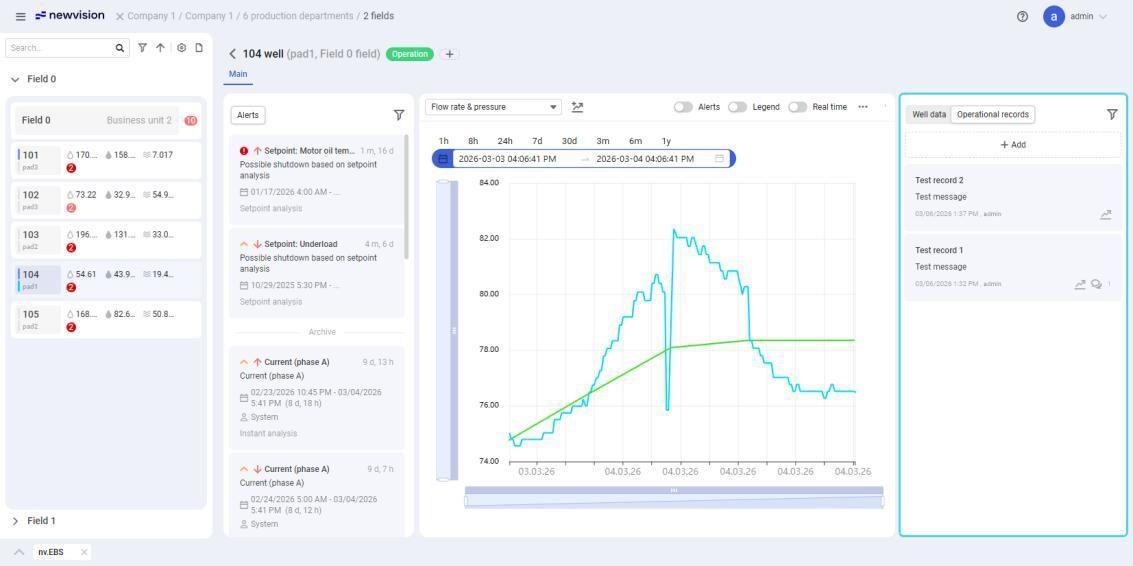
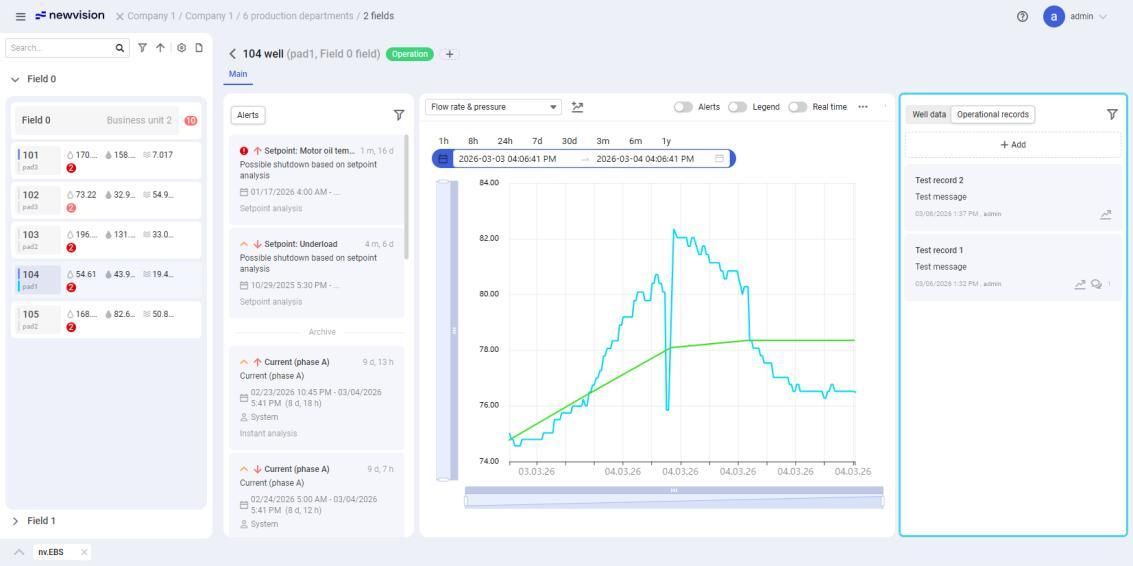
Operational records allow you to keep track of the well operation. For details, see Well Data Window.
You can perform the following actions with operational records:
-
 Select image to enlarge
Adding Operational Records#
To add a new record, perform the following actions:
-
Open the well data window for the desired well. For details, see Well Data Window.
-
In the right part of the window, open the Operational records tab.
-
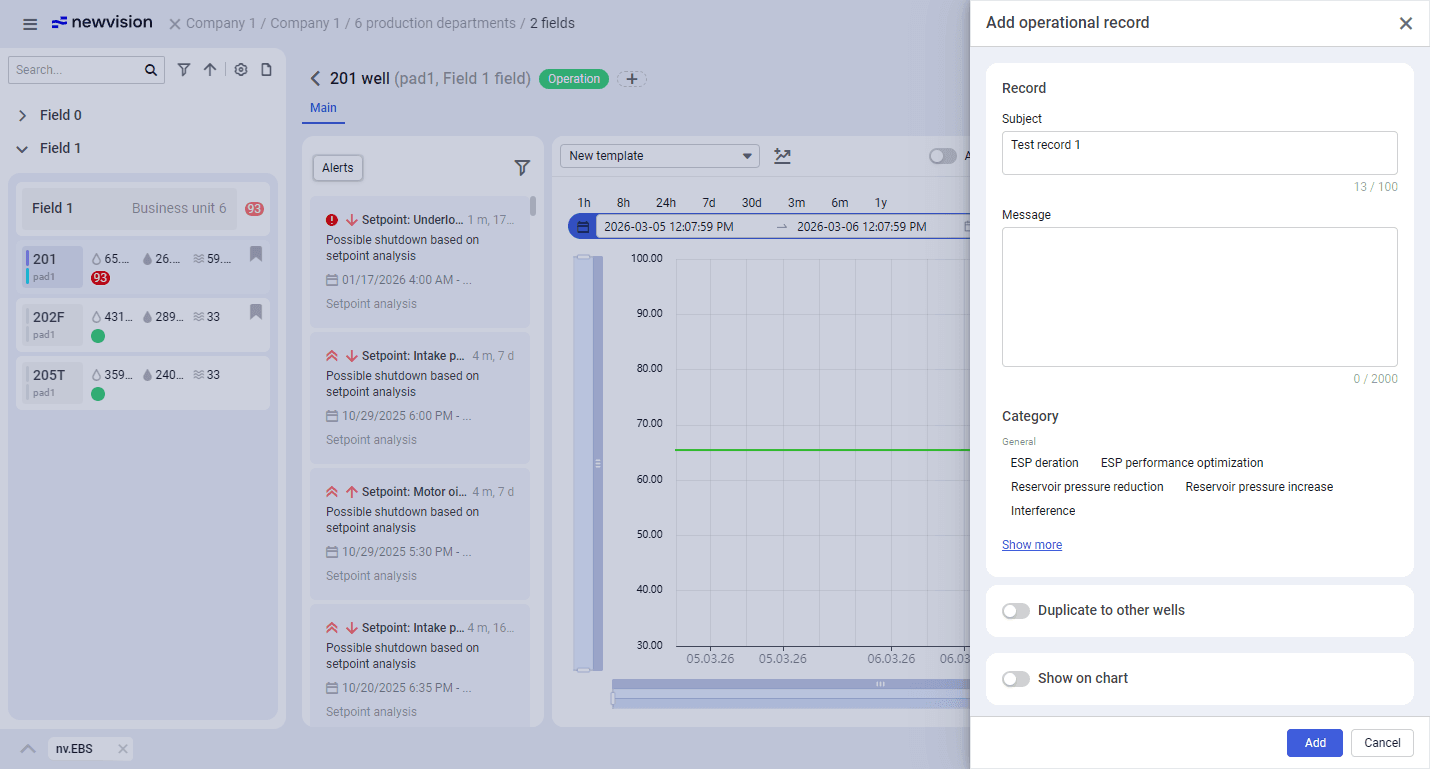
On this tab, click Add (
 ). The new record window opens.
 Select image to enlarge
 -
In the Subject and Message fields, enter the content for the record.
-
(Optional) To assign tags to the record, under the Tags heading, click the desired options.
Note
Tags are used for categorization of the operational records. You can filter the list of records by tags and display these tags on the trend chart if the corresponding option is enabled (see description below).
-
(Optional) To add the same record to other wells, perform the following actions:
-
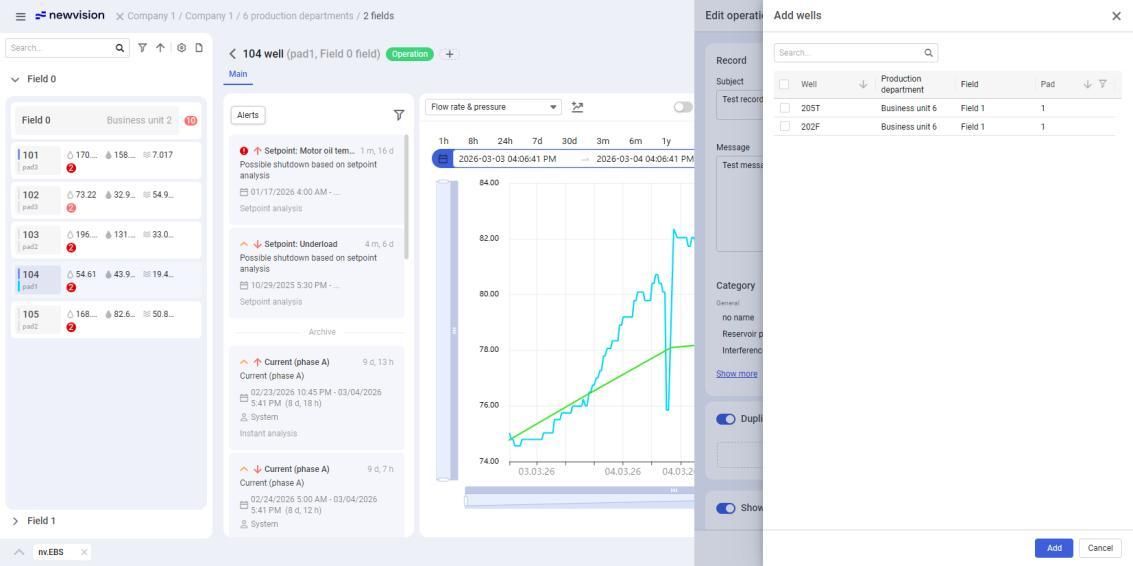
Turn on the Duplicate to other wells option, and then, under the corresponding toggle, click Add (
). Select image to enlarge
 -
In the window that opens, select check boxes of the wells to which the record will be duplicated, and then, at the bottom of the window, click Add. A list of the selected wells appears under the Duplicate to other wells toggle.
-
(Optional) To delete a well from this list, hover over it and click Delete (
 ).
).
-
-
(Optional) To make the record visible on the chart, perform the following actions:
-
Turn on the Show on chart option. The record display parameters appear under the toggle.
-
Click the date picker, and then select from the calendar or enter manually the date and time when the record will be displayed.
-
Below the date picker, select the record elements that will be displayed: Subject, Tags, and/or Message. The record preview below shows how it will appear on the chart.
-
-
At the bottom of the window, click Add. The created record appears in the list.
Filtering Records#
To filter the list of operational records by tags, perform the following actions:
-
Open the well data window for the desired well. For details, see Well Data Window.
-
In the right part of the window, open the Operational records tab.
-
In the upper-right corner of the tab, click Filter (
 ), and then select check boxes of the desired tags in the drop-down list.
 -
At the bottom of the list, click Apply.
-
(Optional) To clear filters, click Filter (
), and then, at the bottom of the drop-down list, click Reset.
Displaying Records on Trend Chart#
To show operational records on the trend chart, perform the following actions:
-
Open the well data window for the desired well. For details, see Well Data Window.
-
Ensure that the Show on chart option is enabled in the desired operational record settings. For details, see procedure above.
-
At the top of the trend chart, turn on the Oper. records option. If the desired operational records belong to the time range displayed on the chart, they appear on the chart as badges. For details on the trend chart, see Well Data Window.
Commenting on Records#
To add a comment to an operational record, perform the following actions:
-
Open the well data window for the desired well. For details, see Well Data Window.
-
In the right part of the window, open the Operational records tab.
-
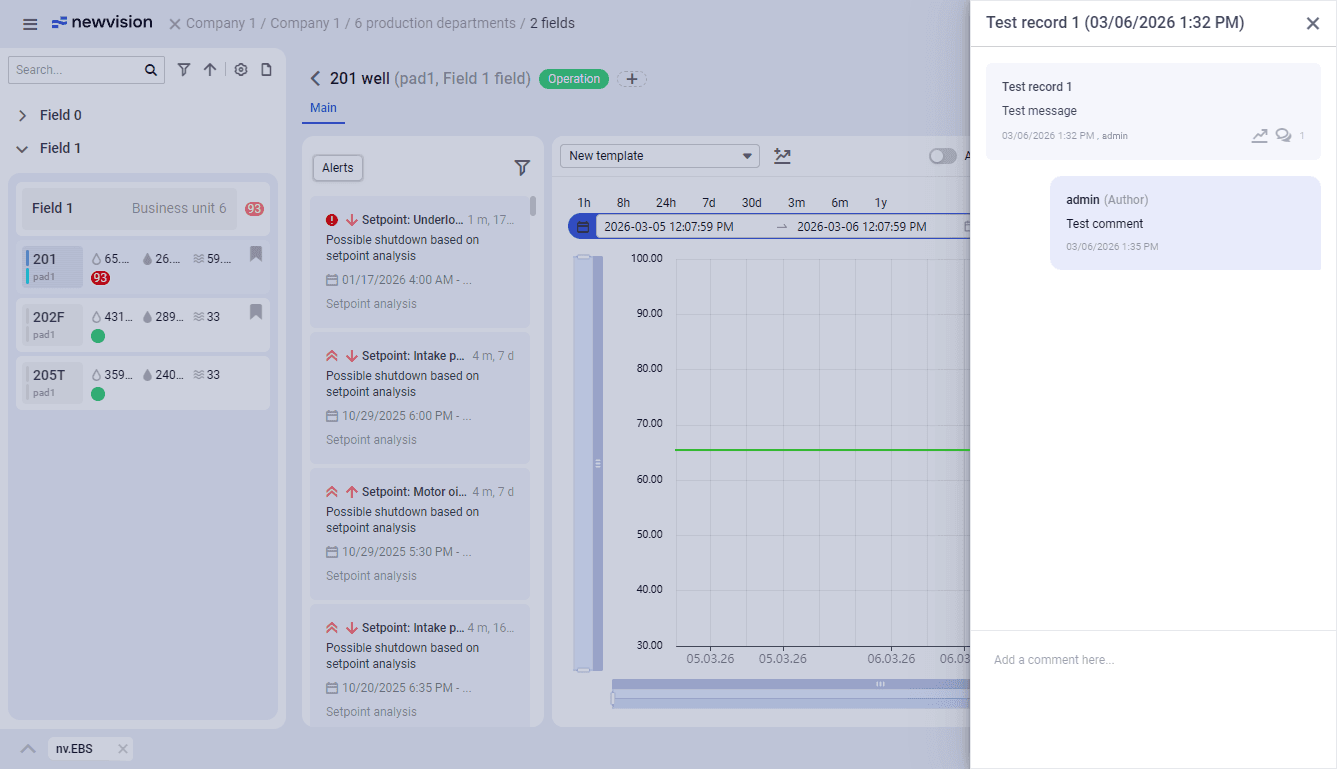
Click the desired record tile. A list of all comments on the record appears.
 Select image to enlarge
 -
In the lower part of the window, enter your comment and press Enter. The added comment appears in the list.
Editing Records#
To edit an operational record, perform the following actions:
-
Open the well data window for the desired well. For details, see Well Data Window.
-
In the right part of the window, open the Operational records tab.
-
Hover over the tile of the desired operational record and click Edit (
 ).
).Important
You cannot edit operational records added by other users. The Edit (
) icon appears only on the tiles of the records created by you. The record settings window opens. -
In the window, make the desired changes. For details, see the procedure above.
-
At the bottom of the window, click Save.
Deleting Records#
To delete an operational record, perform the following actions:
-
Open the well data window for the desired well. For details, see Well Data Window.
-
In the right part of the window, open the Operational records tab.
-
Hover over the tile of the desired operational record and click Delete (
).Important
You cannot delete operational records added by other users. The Delete (
) icon appears only on the tiles of the records created by you. -
In the window that opens, confirm the deletion. The record disappears from the list.