
System Interface
 Select image to enlarge
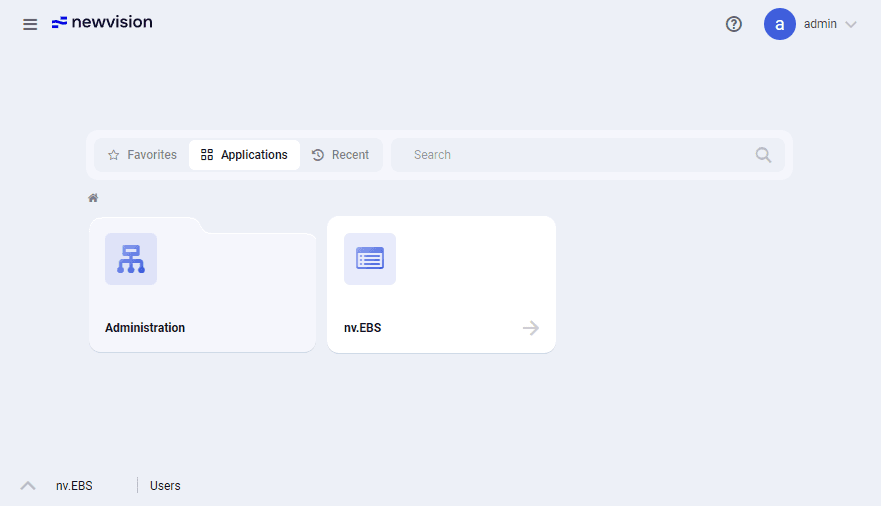
The system interface consists of the following parts:
-
Menu (
 ): Opens the menu with a list of all system modules.
 -
System logo ( ): Opens the newvision home page that provides quick
 Select image to enlarge
access to the system modules. For details, see Home Page.
-
Business unit menu: Opens the window where you can select the business unit whose wells will be handled in the nv.EBS module. For details, see Home Page.
Note
Business unit menu is not available from the home page. To open it, go to the nv.EBS module. For details, see nv.EBS.
-
Help (
 ): Opens the menu from which you can open the nv.EBS help and submit a request to the support team.
 -
User login (
 ): Opens the window where you can change user settings and log out of the system. For details, see User Settings.
 -
Tab bar: Provides a list of all currently opened modules displayed as tabs. On the left, an arrow icon (
 ) is displayed. Clicking it opens a list of recently closed modules. Additionally, you can search for a module by typing its name in the text field at the top of the list.

Choose a topic in System Interface.