The alert data window provides detailed information about the selected alert and allows you to confirm or dismiss it.
You can open the window in several ways:
-
By clicking the alert entry in the Alerts pane of the well data window
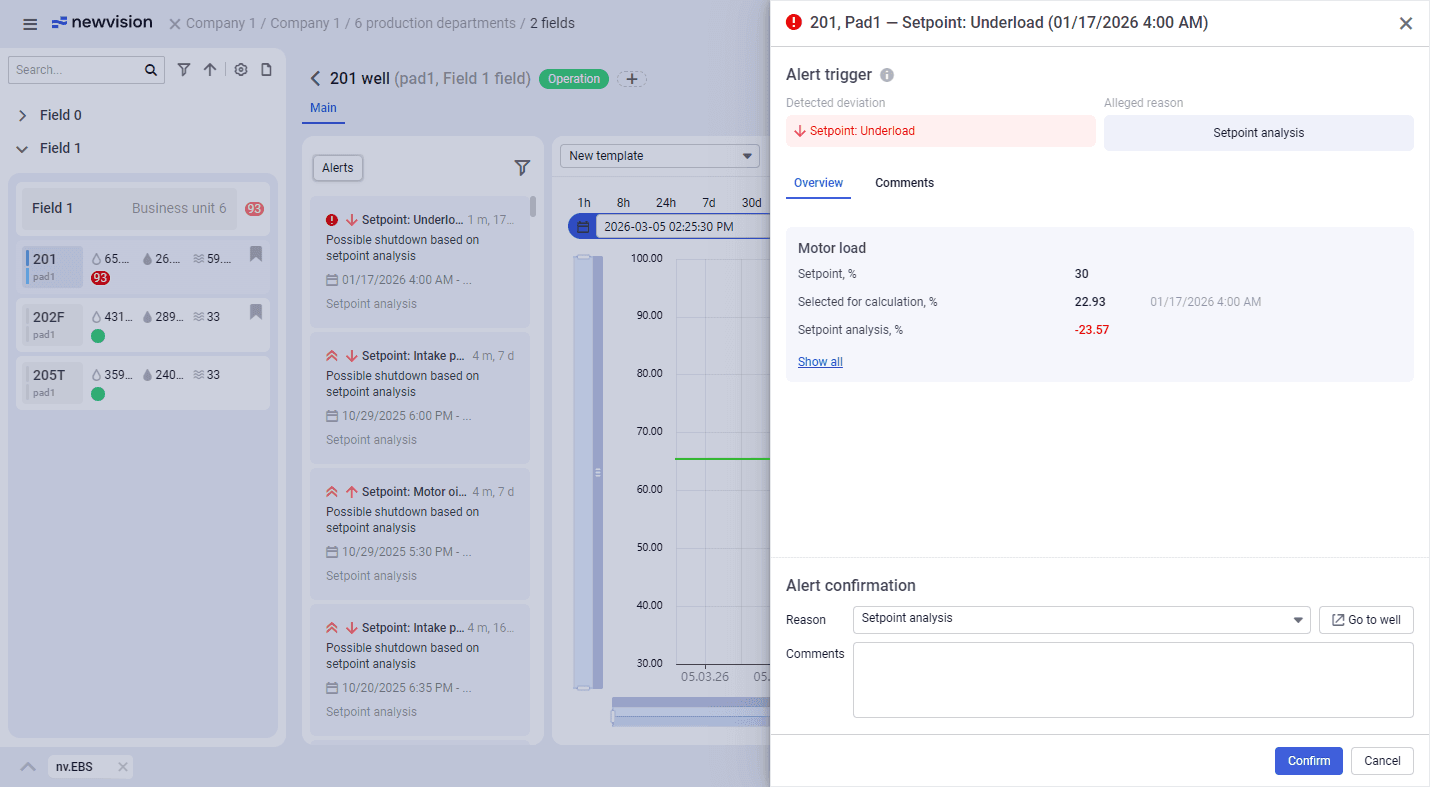
The alert data window consists of the following parts:
-
Alert trigger area at the top of the window
-
Overview and Comments tabs in the central part of the window
Alert Trigger
The area provides key data on the selected alert.
To the right of the area heading, the following elements are available:
-
Alert details (
 ): Opens the Alert details window with values of all parameters factored in the calculation. For details, see below.
 -
Alert status (
 ): Indicates the status of the alert if it has been moved to the archive. For details, see Archive.
Below, the Detected deviations and Alleged reasons blocks provide information about the deviations that triggered the alert generation and the possible reasons behind them, respectively. You can confirm the alleged reason or select another reason in the Alert confirmation area at the bottom of the Overview tab (see description below).
Overview
The Overview tab contains a table with values of the key monitored parameters that triggered the alert. You can confirm the alert reason here to move the alert from the pending list to the archive.
Depending on the deviation type (deviation analysis, setpoint analysis, or instant analysis), the table content may differ.
For example, if the alert was triggered by an intake pressure deviation (i.e., setpoint analysis), the table shows the setpoint value, the value used for the calculation, and the deviation between them expressed as a percentage.
If the alert was triggered by a liquid flow rate deviation (i.e., deviation analysis), the table shows the DFL, the liquid flow rate, and current values in three types: the value from the operating mode, the value used for the calculation, and the deviation between these two values expressed as a percentage.
To view the whole list of the parameters factored in the calculation, at the bottom of the table, click Show all.
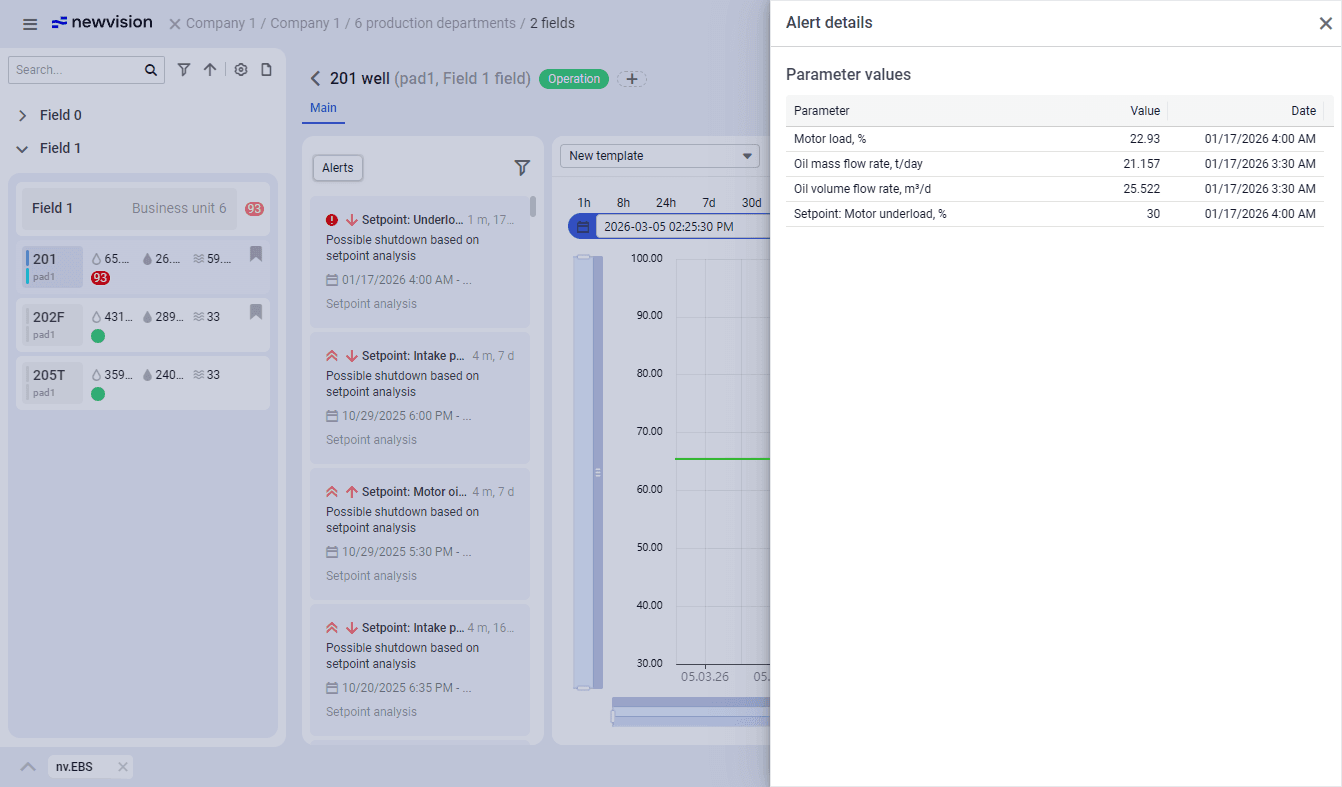
The Alert details window provides consolidated information about the alert generation context.
For alerts generated by the deviation analysis algorithms, the window also includes a flowchart showing how the alleged reason of the deviation was determined.
The Alert confirmation area allows you to confirm the alert reason and move the alert from the pending list to the archive.
To view information about the well for which the alert was generated, click Go to well (  ). For details, see Well Data Window.
If the alert has not yet been confirmed, you can select the reason for the alert generation from the Reason list and, optionally, add a comment in the Comment field.
Important
This functionality applied only to pending alerts. For alerts with the Archive (
Comments
The Comments tab displays all comments added to the alert by nv.EBS users.
To add a comment, in the lower part of the tab, enter your comment and press Enter.