
Selection of the business unit is a mandatory prerequisite for working with the nv.EBS module.
Names of the currently selected business unit are displayed in the left part of the newvision toolbar. If the business unit is not selected, the Select business unit text is displayed instead of the unit name.
To select a business unit, perform the following actions:
-
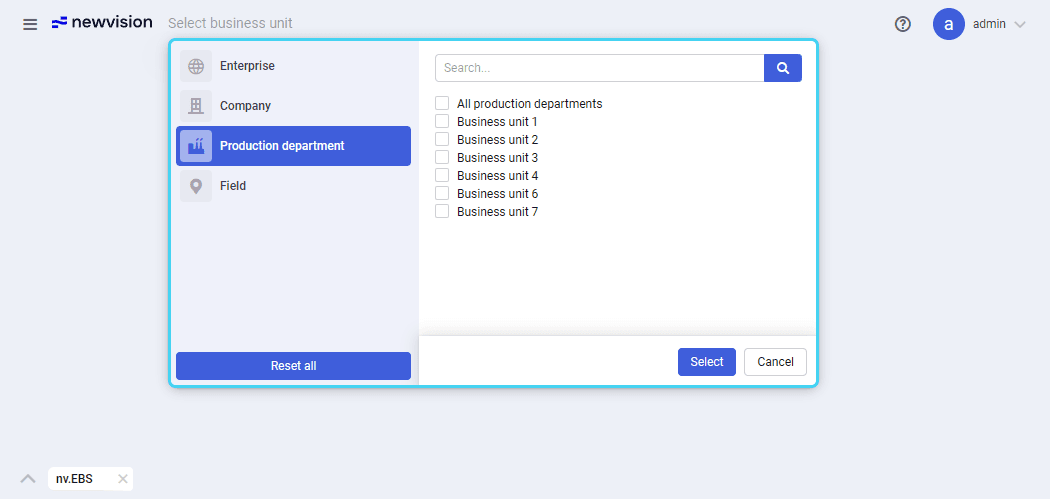
At the top of the newvision system page, on the toolbar, click the name of the currently selected unit (if selected) or the Select business unit text (if not selected). The business unit selection window opens.
-
In this window, click the type of the business unit that you want to select: Enterprise, Company, Production department, or Field. In the right part of the window, a list of units of the selected type appears. Units of lower-level types are automatically filtered according to the units selected at higher levels.
Note
You can search for a unit by typing its name or a part of it in the search field at the top of the window.
-
In the list of business units in the right part of the window, select check boxes of the desired units. Names of the selected units appear in the left part of the window under the corresponding type name.
-
(Optional) To clear the selection, to the right of the business unit type name, click the cross icon (
 ).
). -
In the lower-right corner of the window, click Select. The window closes, and the names of the selected business units appear on the toolbar.
You can reset the selection in one of the following ways:
-
On the toolbar, to the left of the currently selected business units, click the cross icon (
). -
In the business unit selection window, in the lower-left corner, click Reset all.