B1. Creating Project and Adding Well Data
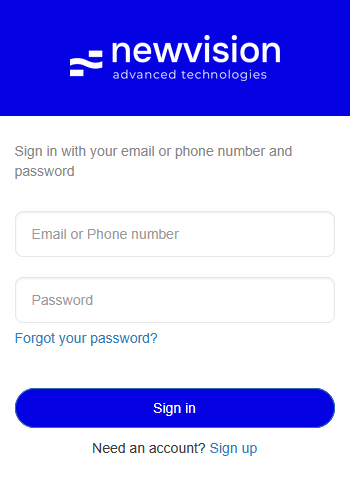
- to the newvision system by entering your login and password.
 Select image to enlarge
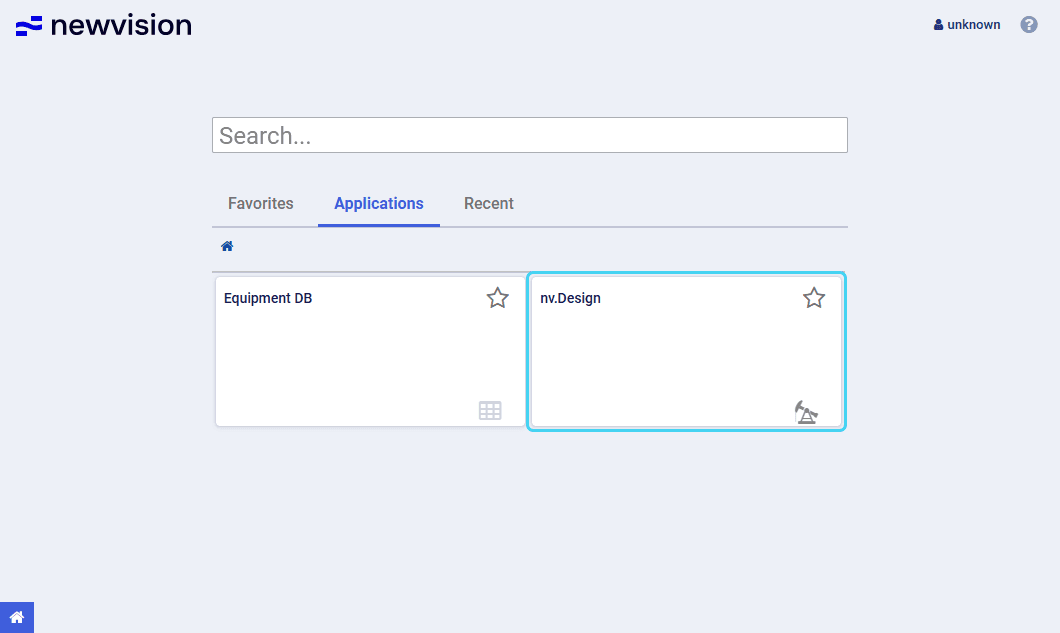
- The opens.
On the home page, click the nv.design module tile.
 Select image to enlarge
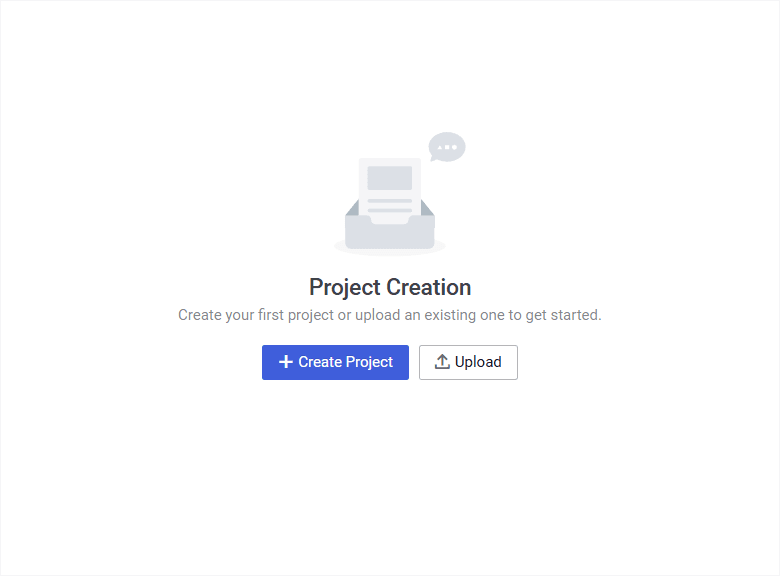
- The Project Creation window opens.
In the Project Creation window, click Create Project ( ).

 Select image to enlarge
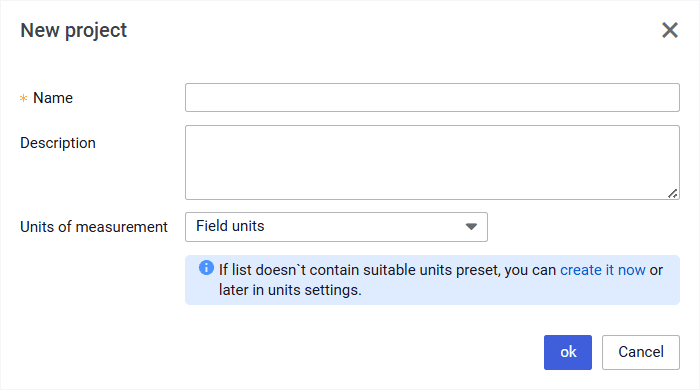
- The New project window opens.
- In the New project window, fill in the Name field, from the Units of measurement list or , and then click ok.
 Select image to enlarge
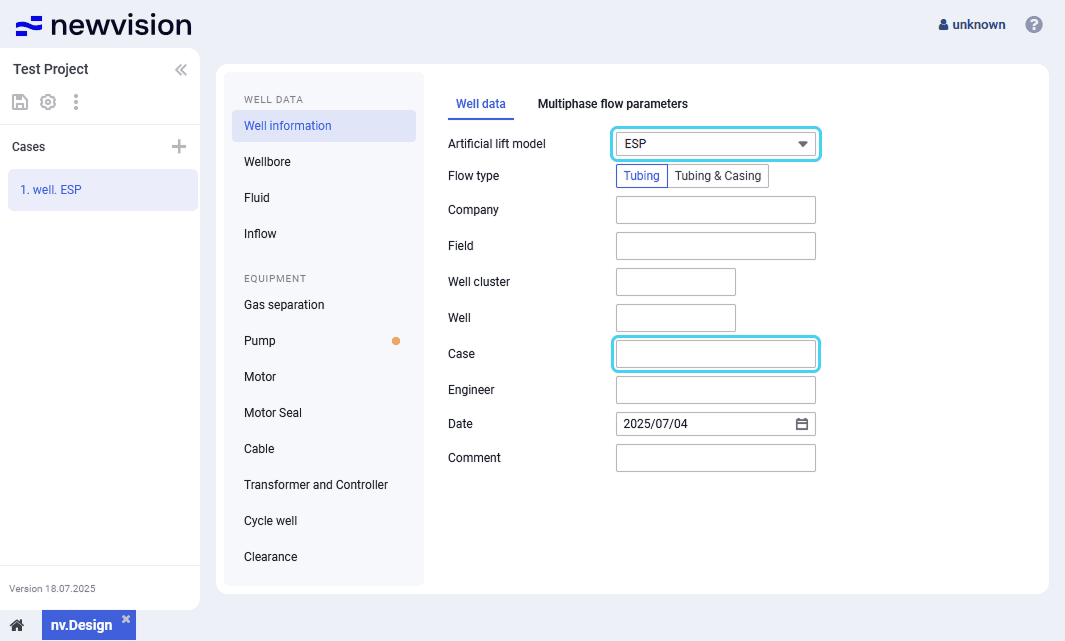
- The created project opens with a default case created automatically.
In the Well information section, on the Well data tab, from the Artificial lift model list, select ESP, and then, in the Case field, enter a name for the new case.
 Select image to enlarge
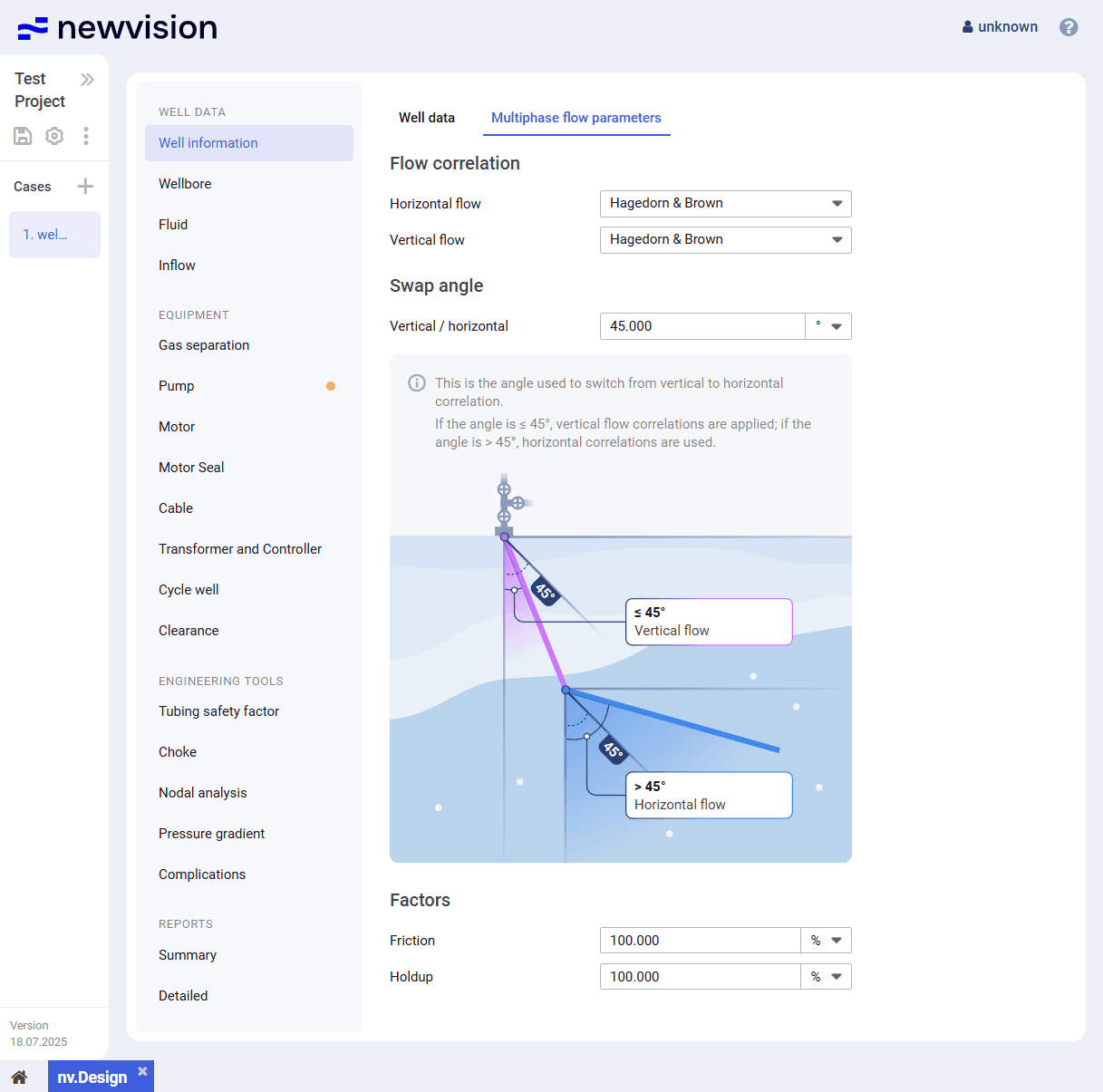
- In the Well information section, on the Multiphase flow parameters tab, select the horizontal and vertical flow correlations, and, if needed, change the transition angle and/or friction and holdup factors. For details, see Multiphase Flow Parameters.
 Select image to enlarge
- In the Wellbore section, on the Wellbore configuration tab, and fill in the Top of perforation field.
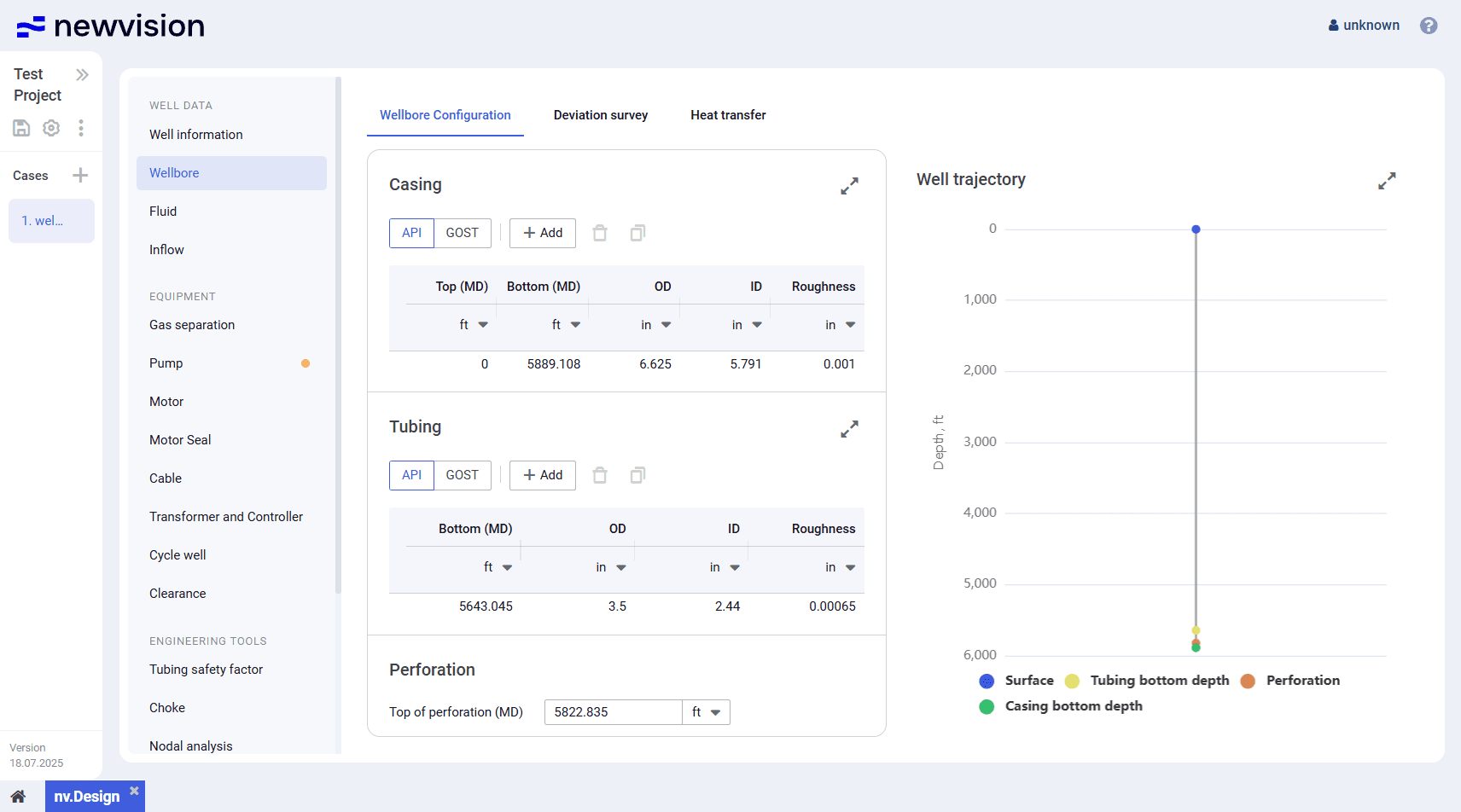 Select image to enlarge
- In the Wellbore section, on the Deviation survey tab, and .
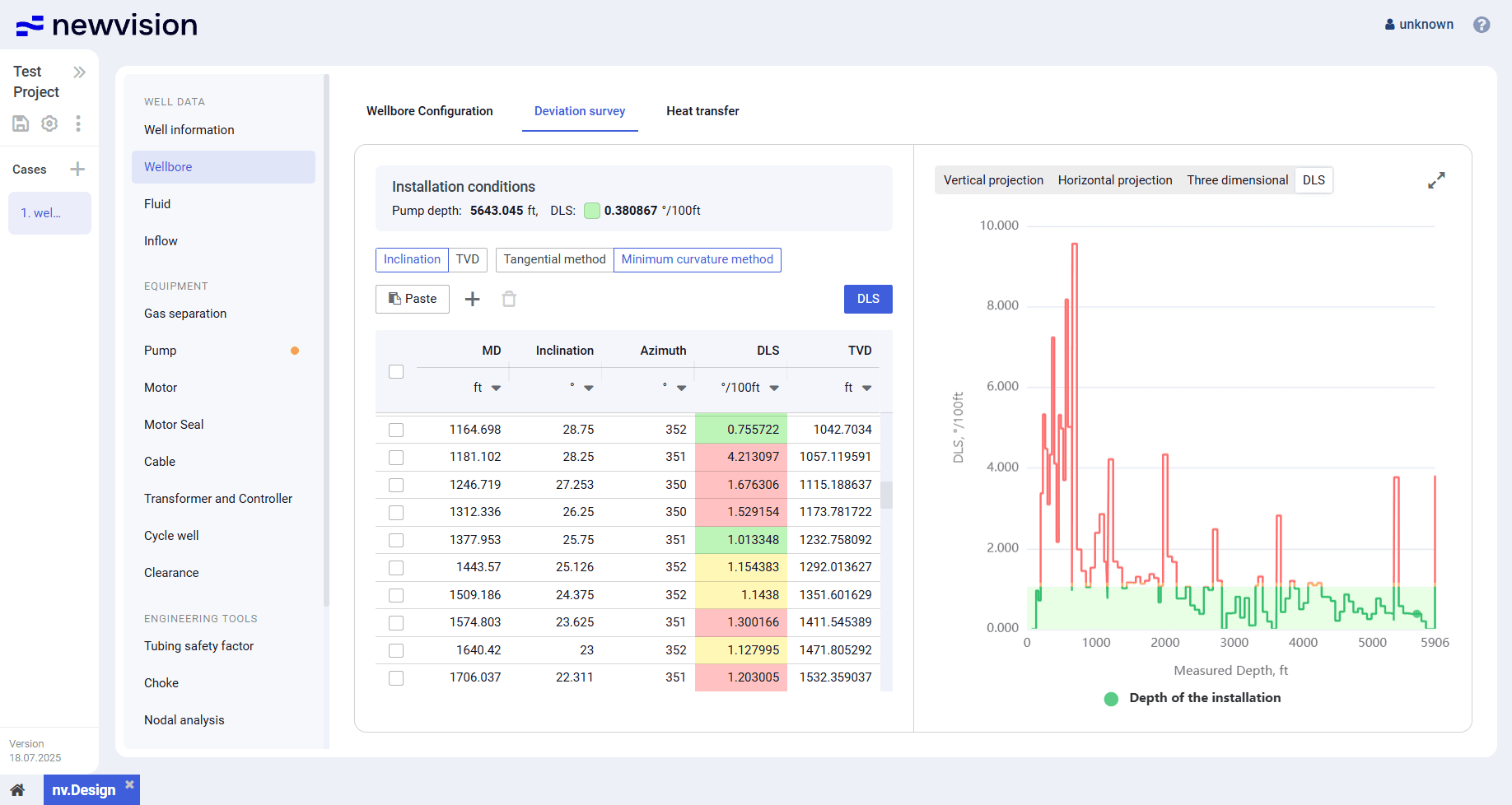 Select image to enlarge
In the Wellbore section, on the Heat transfer tab, and for building the well temperature profile.
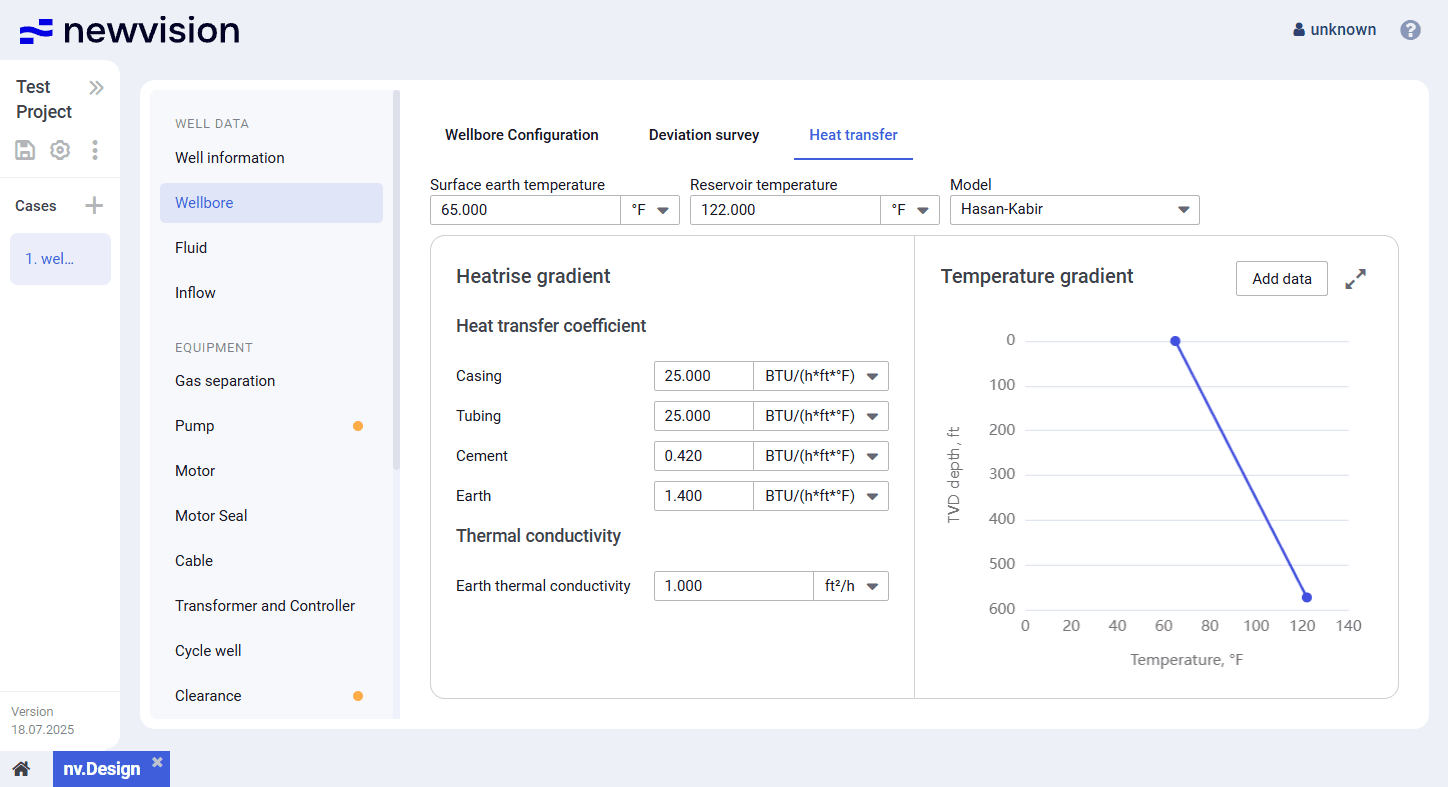 Select image to enlarge
In the Fluid section, configure the well fluid PVT properties and correlations used for their calculation. For details, see Configuring Fluid PVT Properties.
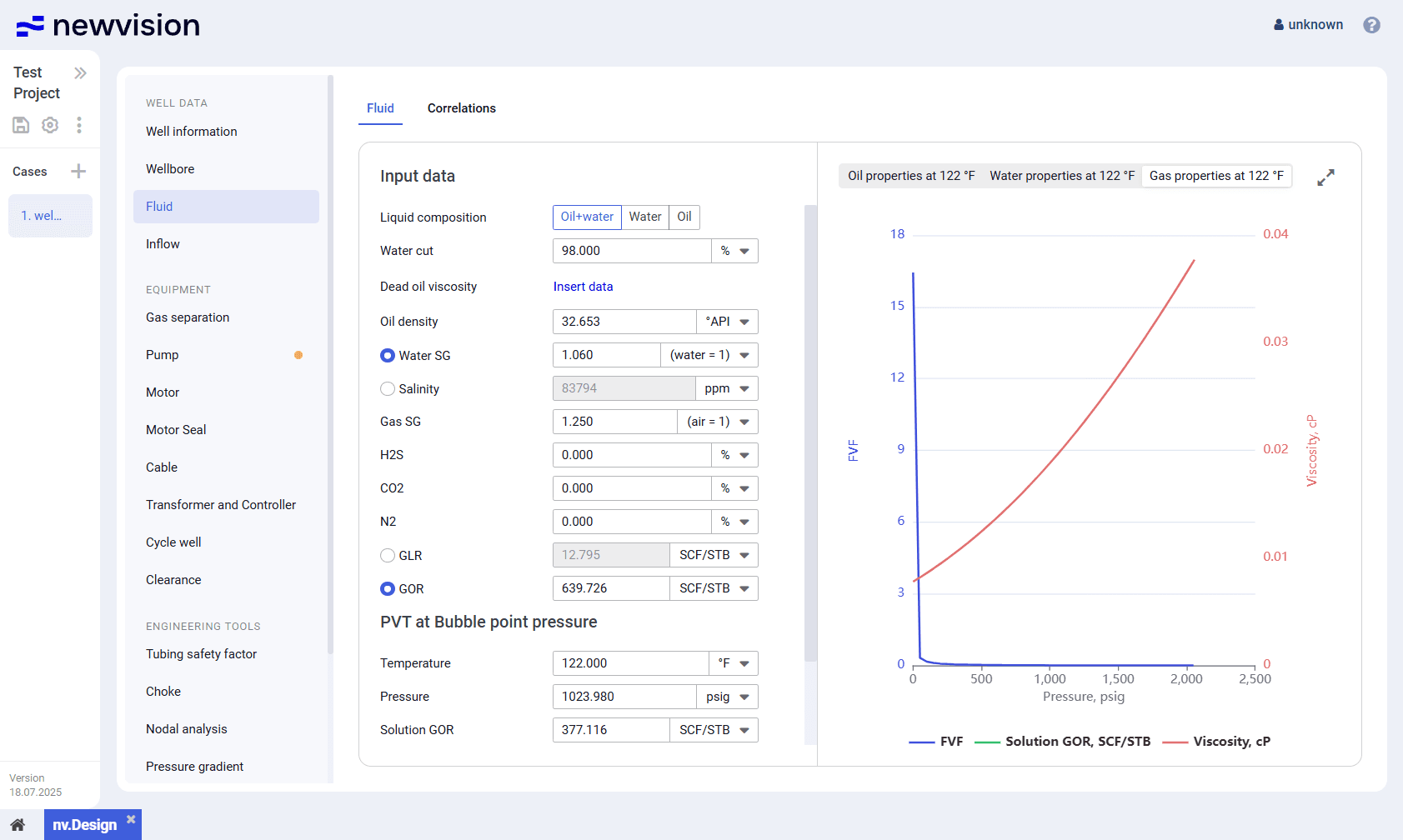 Select image to enlarge
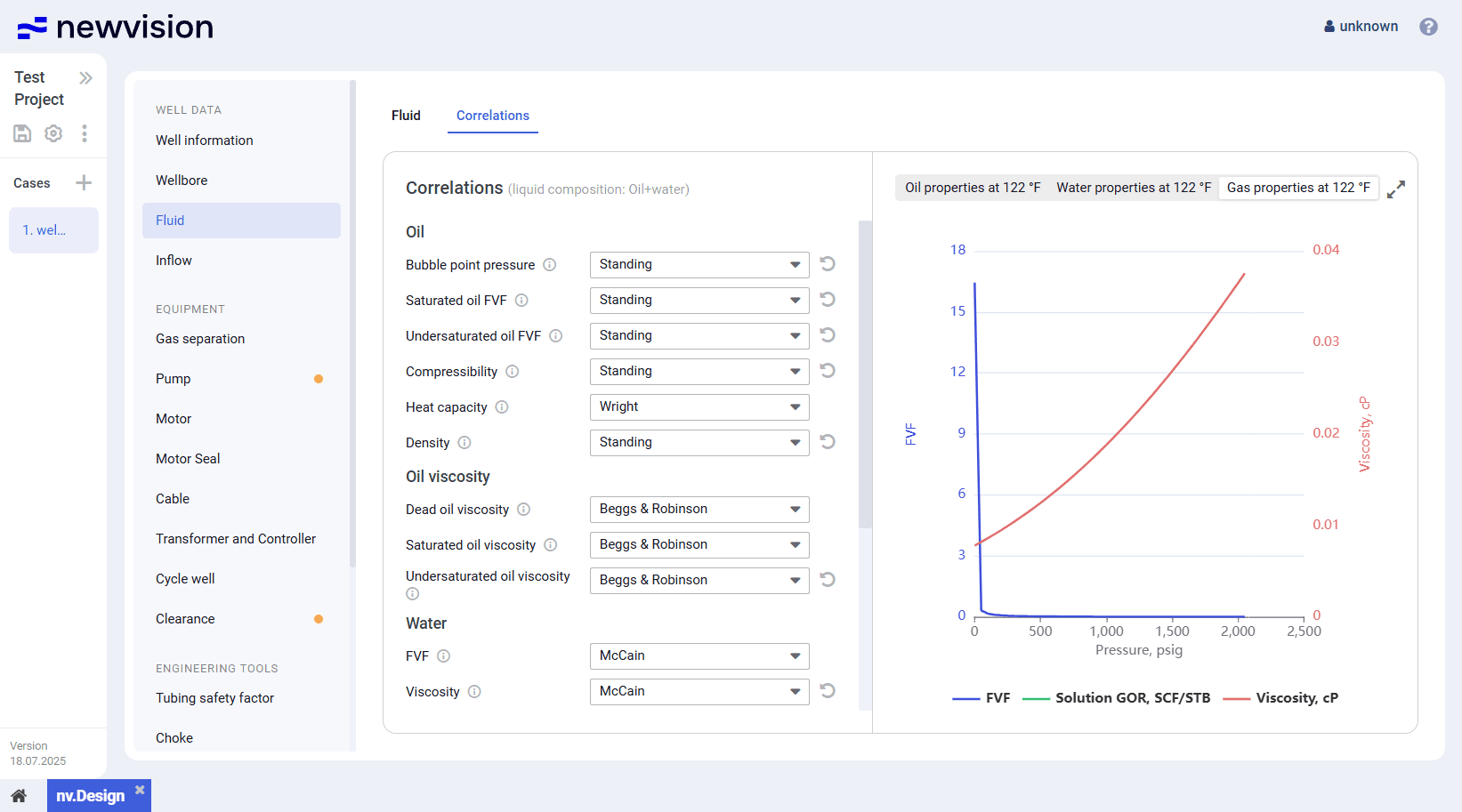
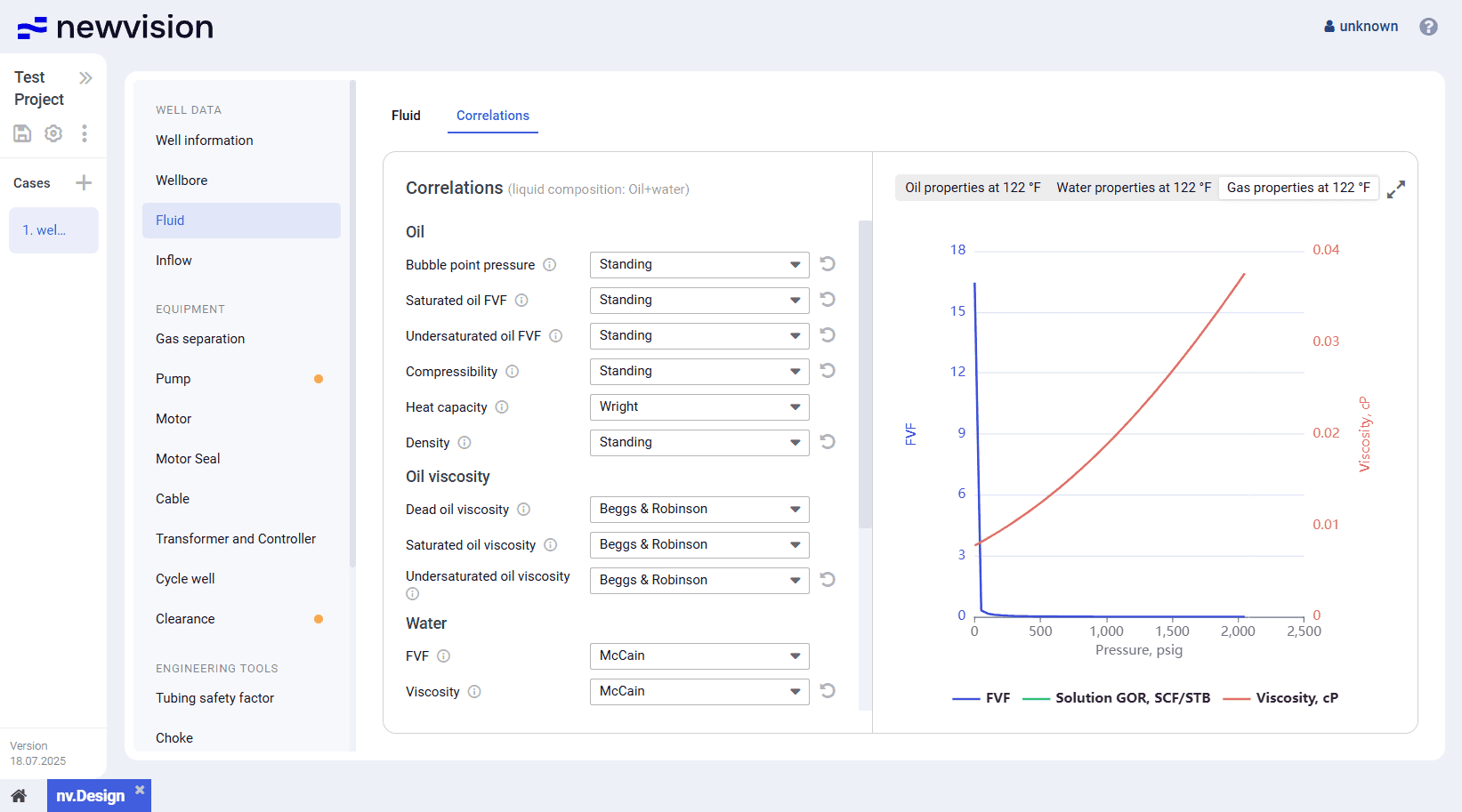
In the Fluid section, on the Correlations tab, select desired correlations from the corresponding lists. For details, see Appendix A: PVT Correlations.
 Select image to enlarge