
Project Pane
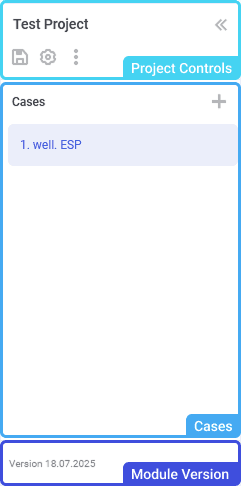
The project pane in the left part of the module provides controls for managing projects and cases. It consists of the following parts:
- Project controls at the top.
- Cases area in the center.
- Module version at the bottom.
 Select image to enlarge
You can collapse the pane to a smaller size by clicking the double arrow icon ( ) in its upper-right corner.

Project Controls
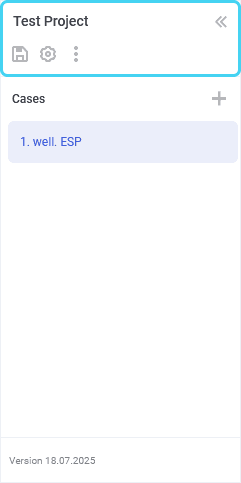
At the top of the project pane, the name of the currently open project is displayed. By clicking it, the Projects window opens. In this window, you can see the status of the current project, and manage all projects that were added to the module. For details, see .
 Select image to enlarge
Below the current project name, the following controls for managing the project are located:
Save ( )

Saves changes made to the current project.
 | Important |
Units ( )

Opens the window for configuring measurement units for the project. For details, see .
Action menu ( )

Provides access to the following project controls:
Duplicate ( ): Creates a copy of the current project.
The created copy appears in the project catalog. For details, see .
Download ( ): Exports the project to a file in the JSON format.

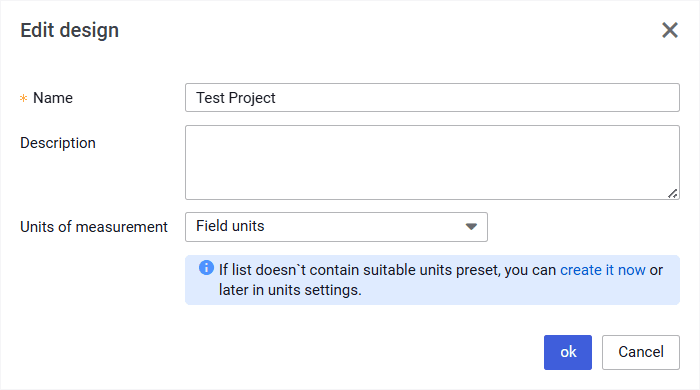
Update ( ): Provides the ability to edit the name, description, and/or measurement unit system of the project in the window that appears.

 Select image to enlarge
Delete ( ): Deletes the project.

Cases
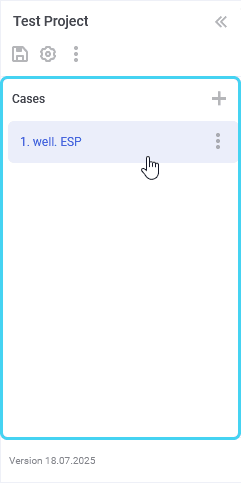
The pane contains a list of the cases created in the project and controls for managing them.
 Select image to enlarge
To open a case, click its name in the list.
To add a case, in the upper-right corner of the pane, click Add ( ) and select the desired option: Create ( ) or Load ( ). For details, see .


On hovering over a case in the list, in the right part of the corresponding row, the three dots icon ( ) appears. It provides access to the action menu with the following options:
Duplicate ( ): Creates a copy of the current case.
The created copy appears in the list.Download ( ): Exports the case to a file in the JSON format.
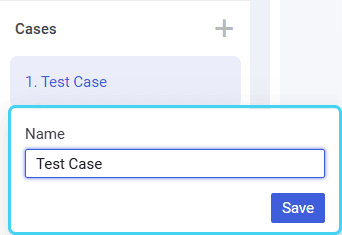
Rename ( ): Provides the ability to edit the name of the case in the window that appears.
 Select image to enlarge
Delete ( ): Deletes the case.
| Important |
Module Version
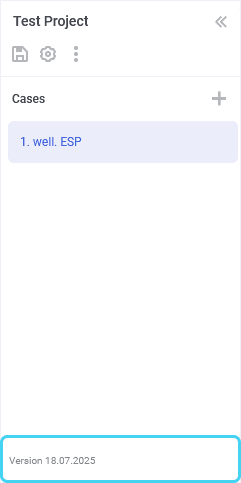
The current module version is displayed at the bottom of the project pane.
 Select image to enlarge
By clicking it, you can open the Release Notes window with information about the past and future releases. For details, see .