In the nv.design module, you can create a new project in several ways, depending on your current stage in the module workflow:
- Upon opening the module
- While working on an existing project
The created project opens with a default case (well design scenario) created automatically.
For details on creating cases, see .
Creating New Project Upon Opening nv.design
To create a project upon opening the nv.design module, perform the following actions:
- Open the nv.design module.
For details on navigation in the system, see System Interface. - Depending on whether there are any projects in the system, perform one of the following actions:
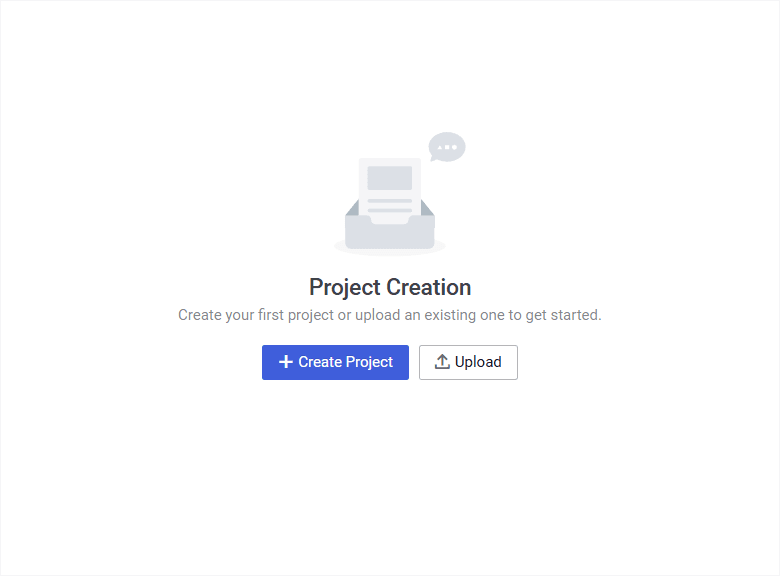
If there are no projects, in the Project Creation window, click Create Project ( ).

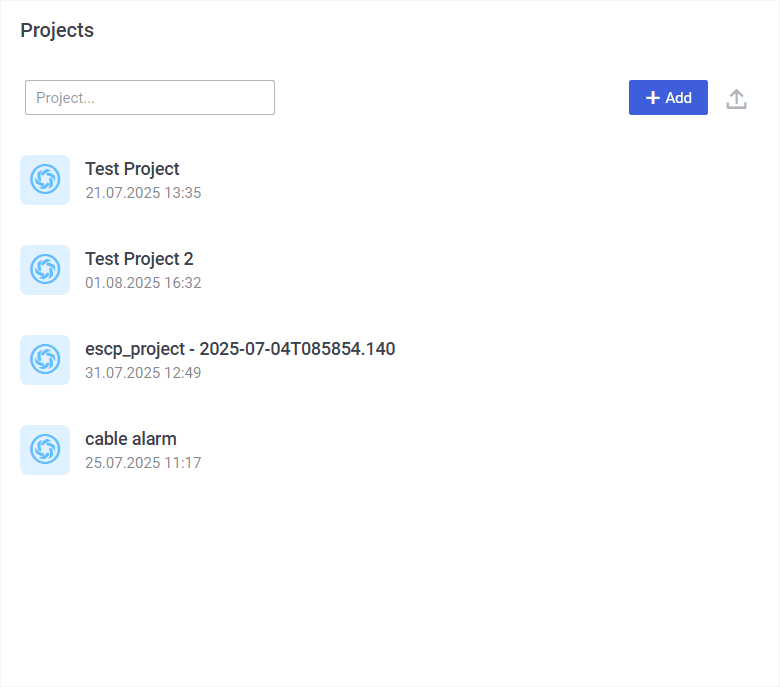
If there already are some projects, in the upper-right corner of the Projects window, click Add ( ).
 | Important |
- The New project window opens.
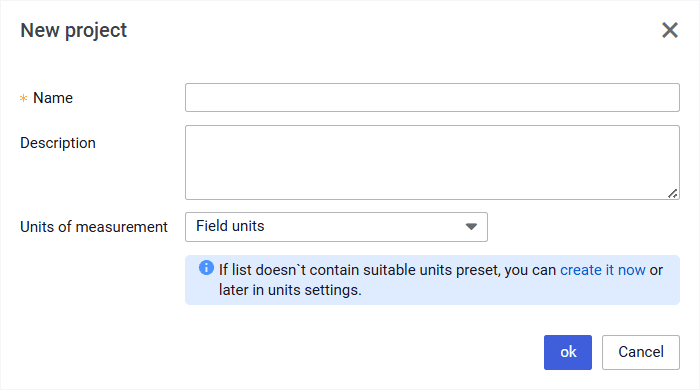
- In the New project window, perform the following actions:
- In the Name field, enter the new project name.
- (Optional) In the Description field, enter a description for the new project.
- From the Units of measurement list, select the desired measurement system: Field units (US oilfield units) or SI units (metric units).
 | Note |
- In the lower part of the window, click ok.
Creating New Project While Working on an Existing Project
To create a project while working on an existing nv.design project, perform the following actions:
- In the upper-left corner of the module, click the name of the currently open project.
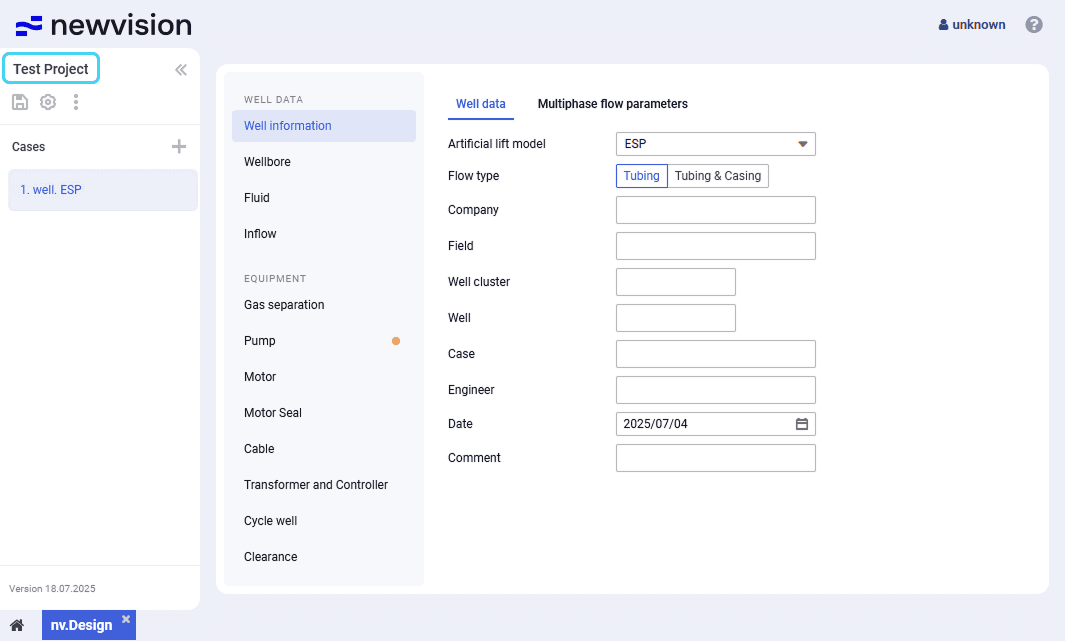
- The Projects window opens.
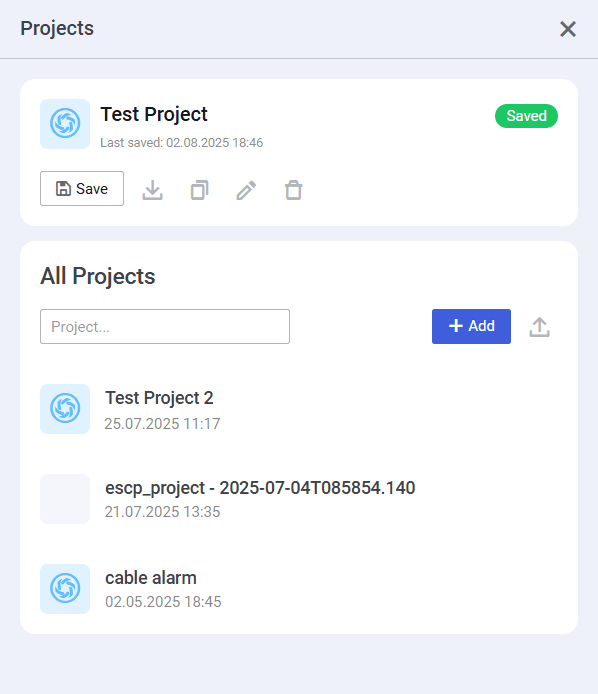
In the Projects window, under the All Projects heading, click Add ( ).
- The New project window opens.
- In the New project window, perform the following actions:
- In the Name field, enter the new project name.
- (Optional) In the Description field, enter a description for the new project.
- From the Units of measurement list, select the desired measurement system: Field units (US oilfield units) or SI units (metric units).
| Note |
- In the lower part of the window, click ok.