
The Projects window provides access to all projects existing in the nv.design module.
The window is divided in two parts:
- Current project data in the upper part of the window.
- All Projects area in the central part of the window.
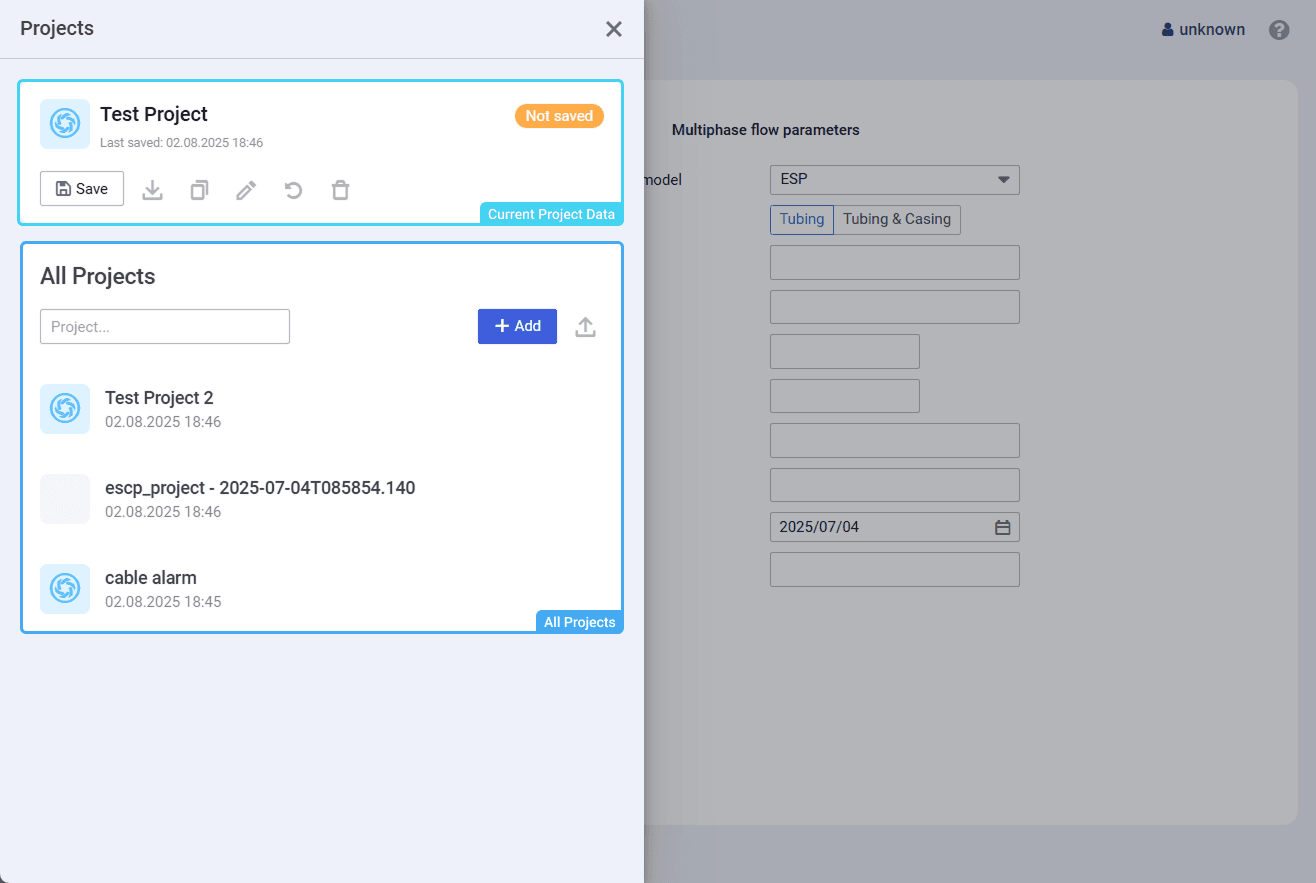
Current Project Data
The area provides information and controls for managing the project that is opened at the moment.
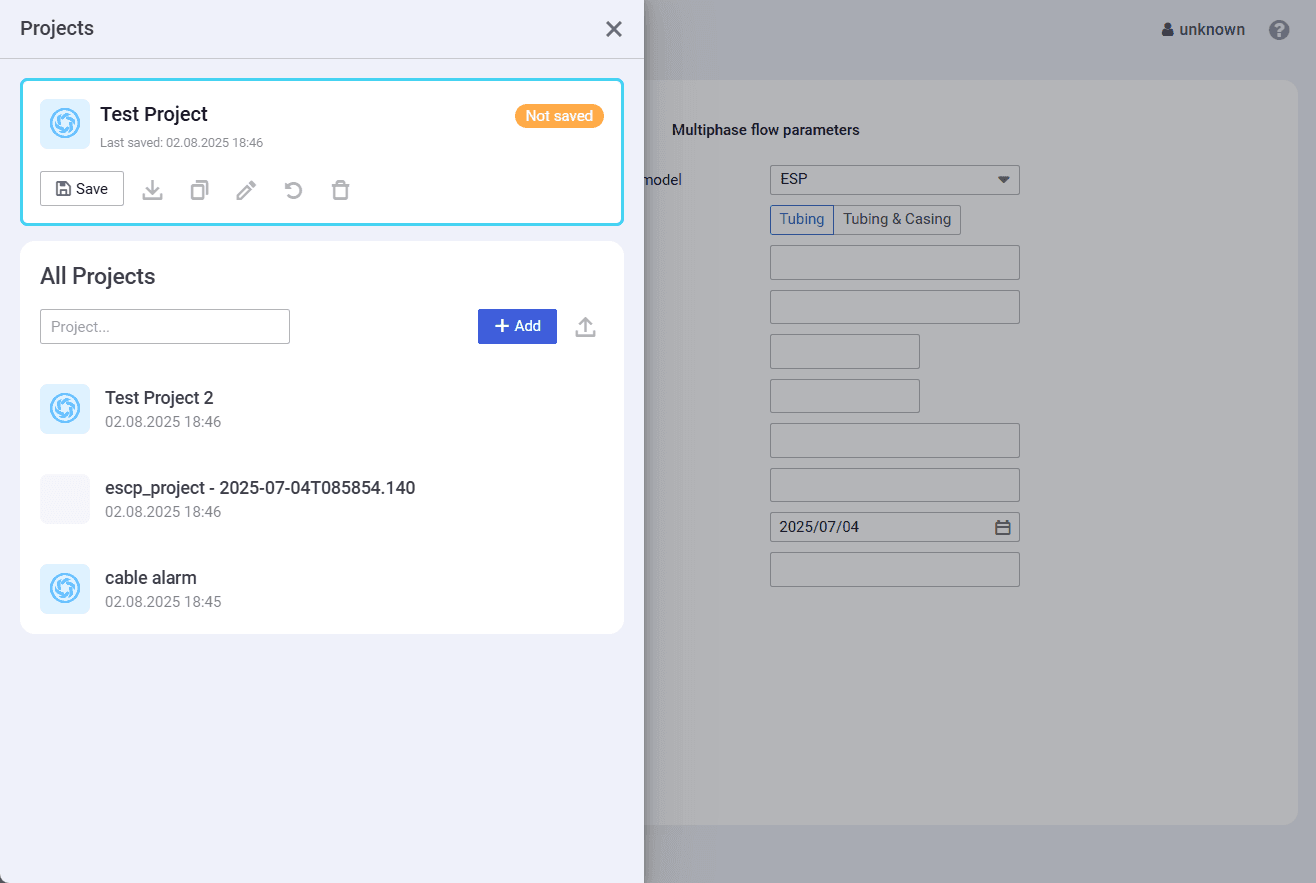
At the top of the area, the name of the current project is displayed, along with the date and time of the last project save. On the right, the status of project changes is shown: Saved or Not saved.
Below, the following controls are available:
Save ( )

Saves the changes made to the project.
After saving, the project status changes to Saved.
Download ( )

Provides the ability to export the project to a file in the JSON format.
For details on importing projects, see .
Duplicate ( )

Creates a copy of the current project.
The created copy appears in the list in the All projects pane.
Update ( )

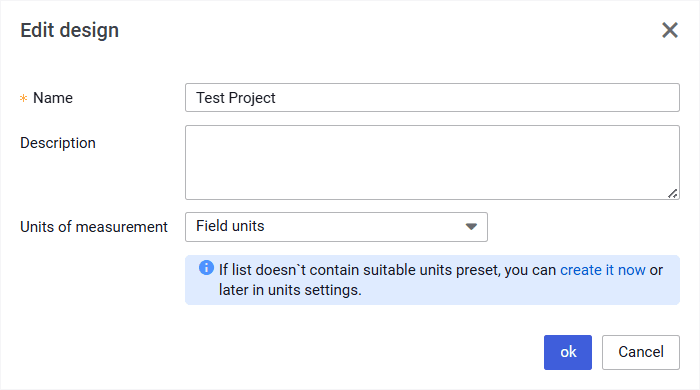
Provides the ability to edit the name, description, and/or measurement unit system of the project in the window that appears.
Reset unsaved changes ( )

Reverts the project to its state at the time of the last save. All unsaved changes are discarded.
Delete ( )

Deletes the project and all cases within it.
All Projects
The area contains a list of all projects existing in the module and provides controls for their managing.
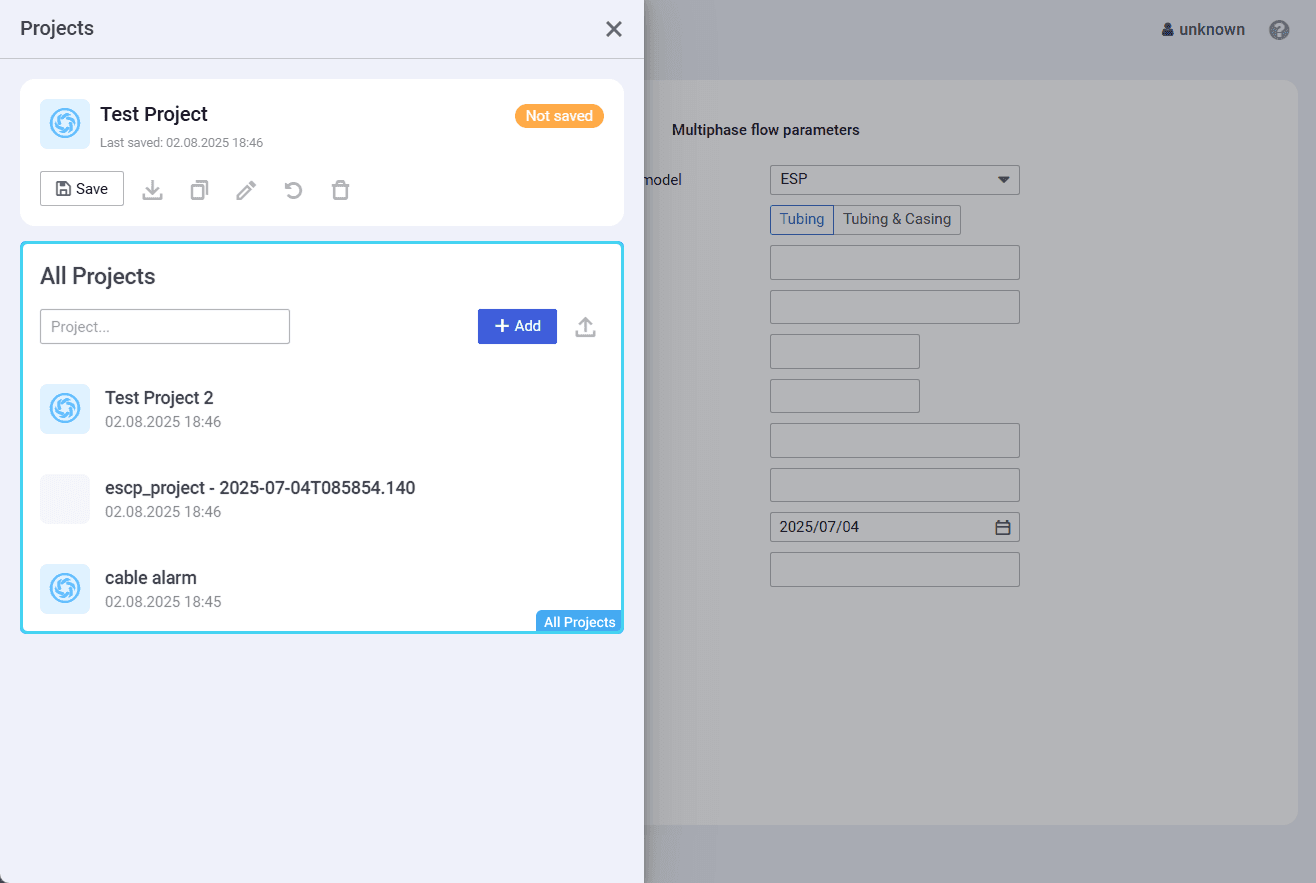
To open a project, click its name in the list.
You can search for a project by typing its name or a part of it in the search field at the top of the area.
In the upper-right corner of the area, the Add ( ) and Upload ( ) buttons are available. Using them, you can create a new or import an existing project in the JSON format. For details, see and .


On hovering over a project in the list, in the right part of the corresponding row, the three dots icon ( ) appears. It provides access to the action menu with the following options:

Duplicate ( ): Creates a copy of the current project.
The created copy appears in the list.Update ( ): Provides the ability to edit the name, description, and/or measurement unit system of the project in the window that appears.
Delete ( ): Deletes the project and all cases within it.