
The User Settings menu provides the ability to configure user system settings and log out of the system.
To open the menu, in the upper-right corner of the system window, click the name of the current user.
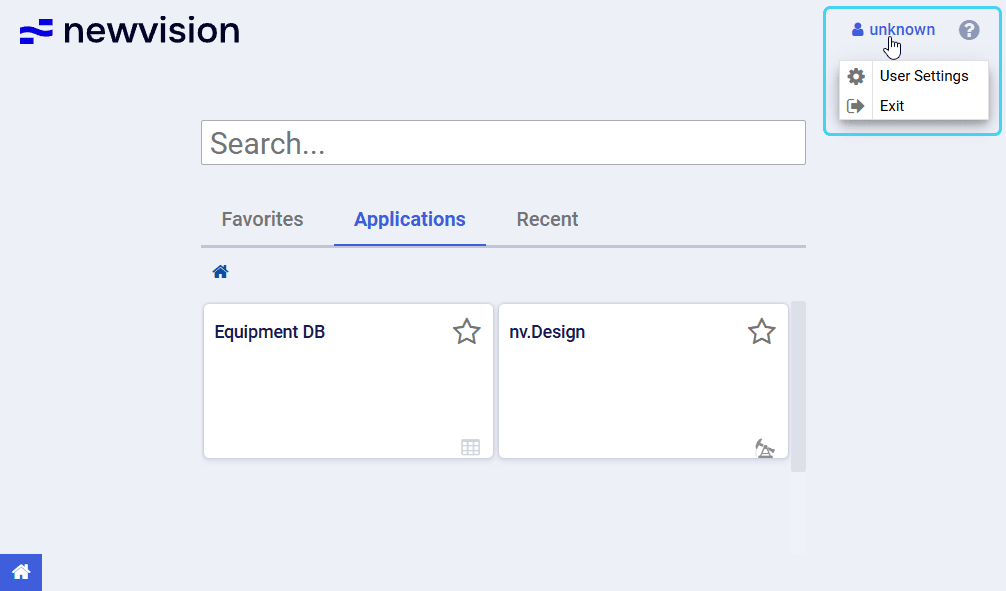
The User Settings menu contains two options:
- User Settings: Opens a window with general interface settings that are individual for each user.
- Exit: Ends your current session in the system.
The User Settings window provides the ability to configure general system parameters, such as interface language and menu behavior.
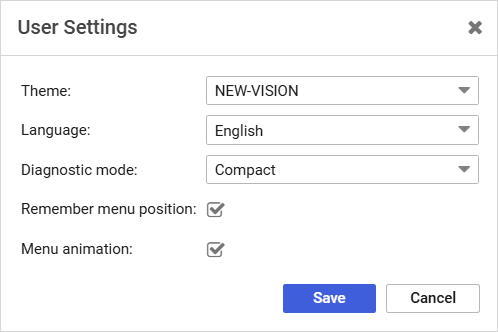
In the User Settings window, you can configure the following parameters:
- Theme: Color theme of the system interface.
- Language: System interface language.
- Diagnostic mode: Level of detail in system error notifications.
By default, the Compact mode is selected, and error notifications are displayed in pop-up windows that appear in the lower-right corner of the window and disappear automatically in a few seconds.
If the Full mode is selected, error notifications are displayed in a separate dialog window. - Remember menu position: If selected, every time you open the main menu during the current session, it opens at the position where you left off.
If cleared, the menu always opens at its default state with all lists of modules collapsed. - Menu animation: If selected, navigation through the main menu is smoothed with animation effects.
To apply the settings, click Save. If you change the theme or interface language, the system reloads automatically. Other settings are applied without reloading.