By default, in the nv.design module, two systems of measurement units are available:
- Field units (US oilfield units)
- SI units (metric units)
Measurement system is selected at the stage of project creation. For details, see and .
However, you can change the measurement system after a project is created in one of the following ways:
- Change other measurement units for specific parameters
- Select another measurement system for the entire project
- Configure a custom set of units
Changing Measurement Units for Specific Parameters
Most nv.design sections provide the ability to select another unit of measurement for specific parameters. For details on the module sections, see .
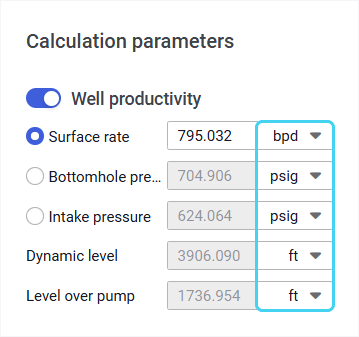
To change the measurement unit for a specific parameter, to the right of the field with the parameter value, click the current unit of measurement and select the desired option from the list.
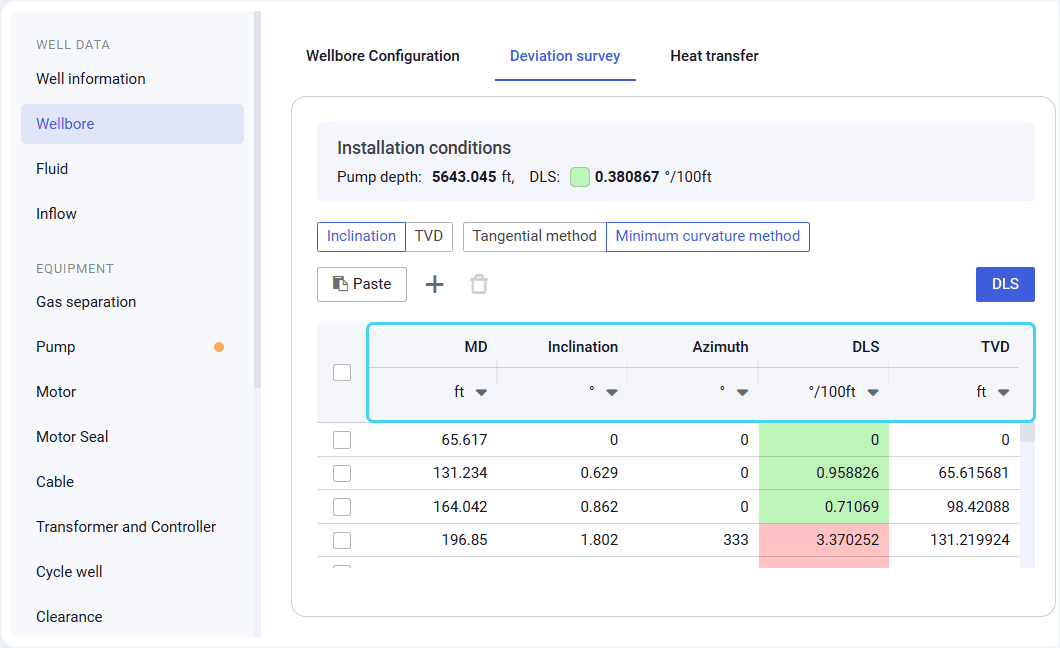
In some tables, units can be changed from the column header.
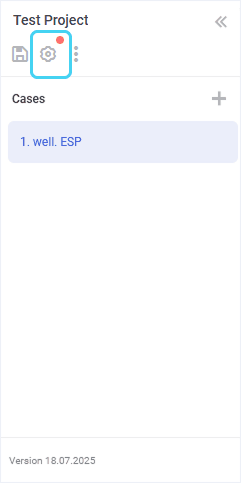
After you change units for at least one parameter, a red marker ( ) appears on the Units ( ) button in the upper-left corner of the module. It indicates that there are changes made to the measurement units.


If the unit change is permanent, it is recommended to save the modified measurement system as a custom set. For details, see .
Selecting Another Measurement System for Entire Project
After the project is created, you can change the measurement system selected at the creation stage.
To do this, open the desired project and perform the following actions:
In the upper-left corner of the nv.design module, click Units ( ).
The Unit system settings window opens in the right part of the module.
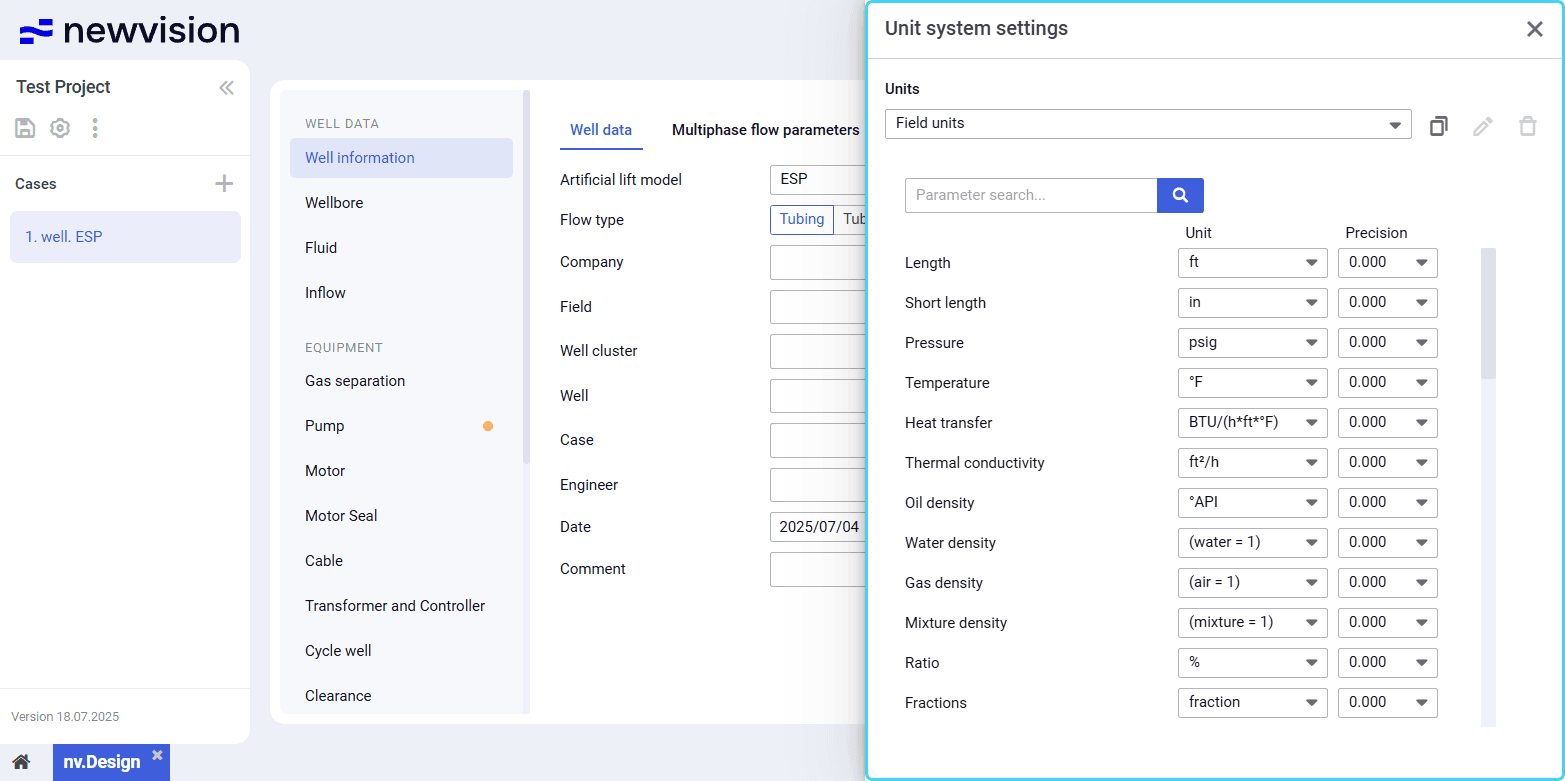
- At the top of the window, under the Units heading, select the desired measurement system from the list.
Close the window by clicking the cross icon ( ) in its upper-right corner.

Configuring Custom Set of Units
nv.design provides the ability to configure custom sets of measurement units. This feature is helpful when the well design requires using units from different measurement systems with different precision for various parameters.
You can create a custom set of units:
- Upon creating or importing a project
- While working on an existing project
Configuring Custom Set of Units on Project Creation or Import
To configure a custom set of units on creating or importing a new project, perform the following actions:
- In the New project window, click create it now under the list of available unit systems.
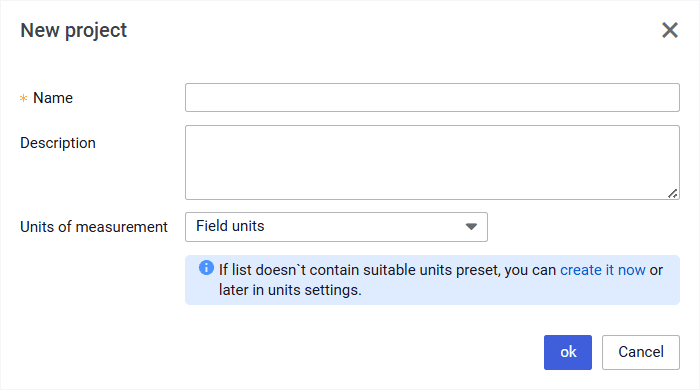
- The Unit system settings window opens in the left part of the module.
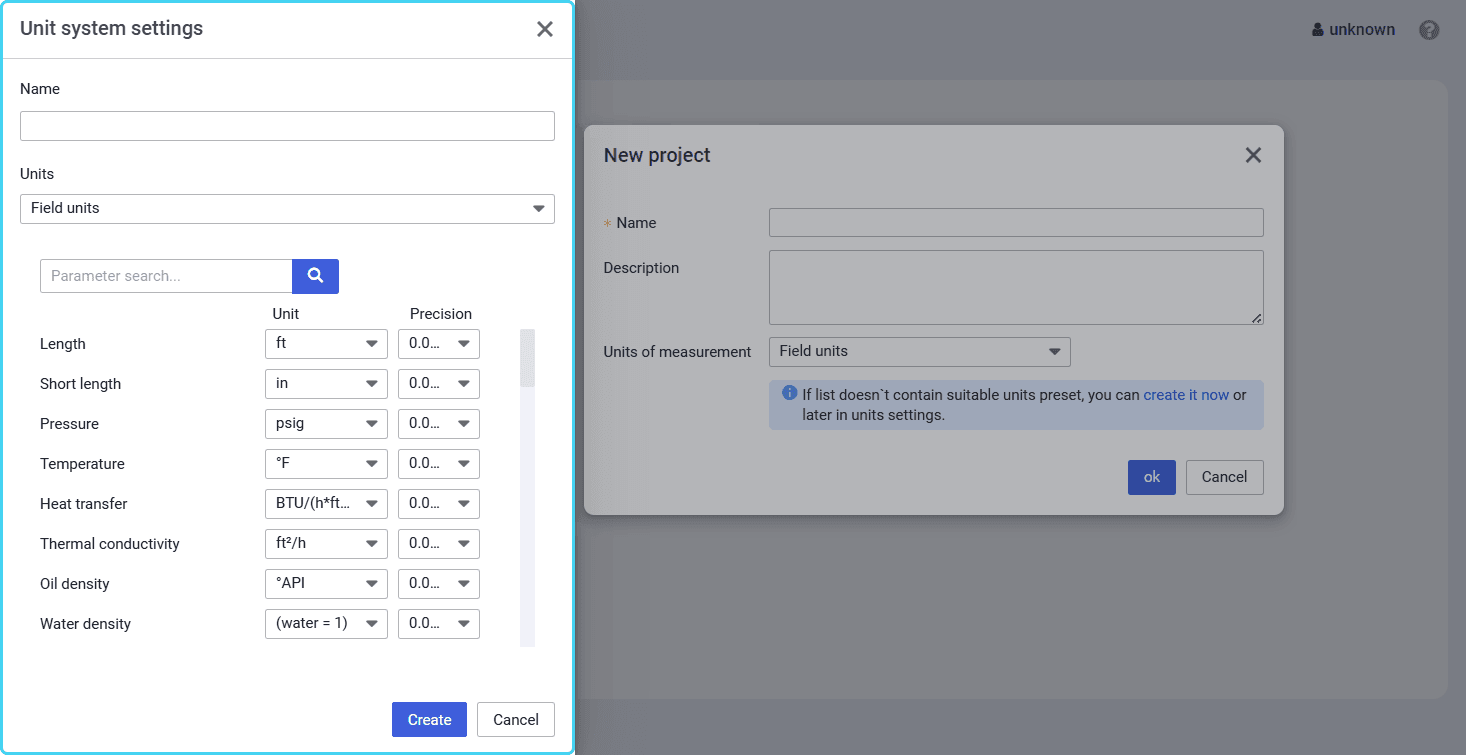
- In the Unit system settings window, perform the following actions:
- At the top of the window, in the Name field, enter the name for the new set of units.
- (Optional) From the Units list, select an existing unit system based on which you want to create a new one.
- (Optional) Search for the parameter for which you want to select another measurement unit or its precision level by entering the parameter name or its part in the Parameter search field.
- To the right of the desired parameter name, select the desired unit from the list in the Unit column.
- To specify precision with which the parameter value will be displayed, in the Precision column, select the desired number of decimal places from the list.
 | Note  |
- At the bottom of the window, click Create.
The created set is automatically selected from the Units list.
| Note |
Configuring Custom Set of Units for Existing Project
To configure a custom set of units while working on a project, perform the following actions:
In the upper-left corner of the nv.design module, click Units ( ).
The Unit system settings window opens in the right part of the module.
| Note |
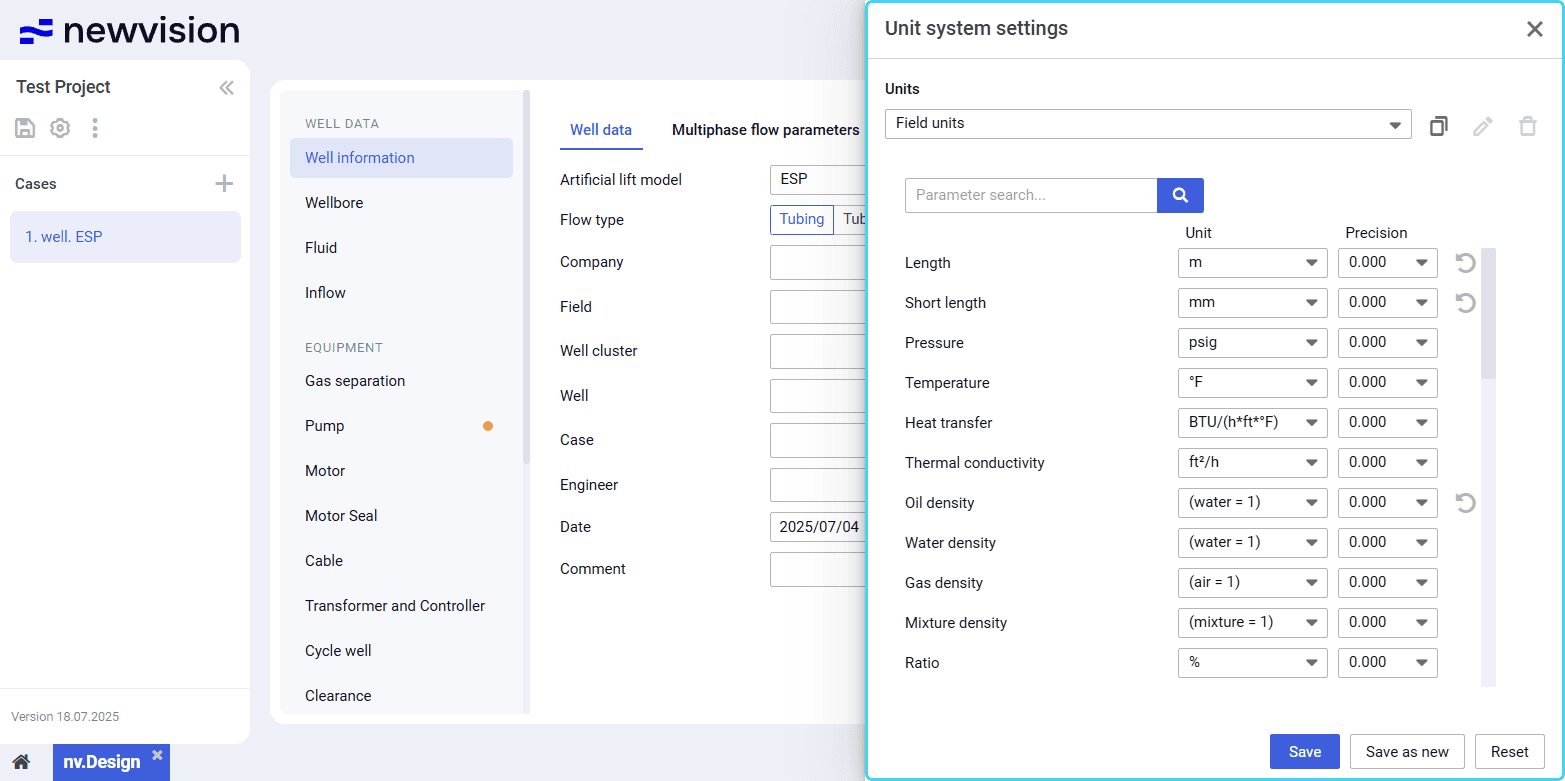
- (Optional) From the Units list, select an existing unit system based on which you want to create a new one.
| Note  |
- (Optional) Search for the parameter for which you want to select another measurement unit or its precision level by entering the parameter name or its part in the Parameter search field.
- To the right of the desired parameter name, select a unit from the list in the Unit column.
- To specify precision with which the parameter value will be displayed, in the Precision column, select the desired number of decimal places from the list.
| Note |
- Depending on the measurement system selected at Step 2, at the bottom of the Unit system settings window, perform one of the following actions:
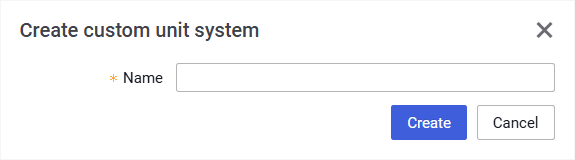
- (For default systems) Click Save as new, and then, in the window that appears, enter the name for the new set of units and click Create.
- (For custom sets)
- To save changes made to the set, click Save.
- To save changes as a new set, click Save as new, and then, in the window that appears, enter the name for the new set of units and click Create.
- The configured set is automatically selected from the Units list and can be further used in other projects.
- (Optional)
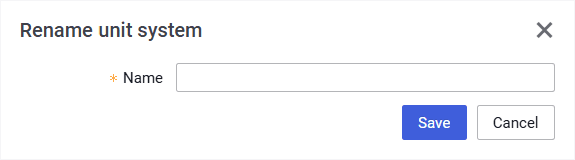
To rename a custom set, to the right of the Units list, click Edit ( ).

To delete a custom set, to the right of the Units list, click Delete ( ).
